> For the complete documentation index, see [llms.txt](https://developer.emporix.io/llms.txt). Markdown versions of documentation pages are available by appending `.md` to page URLs; this page is available as [Markdown](https://developer.emporix.io/vsm-guides/dashboard.md).

# Dashboard

Overview of all active processes for your business.

Value Stream Modeller is available from the Emporix Management Dashboard. To open it, use the dropdown in the top bar to switch to **Value Stream Modeller**.

The Dashboard is the first view you see when you open VSM. It provides a centralized view of all value streams running in your system and collects real-time data, allowing you to monitor operations, track progress, and quickly identify any issues as they occur.

In this view, you can check the status of specific value streams, get instant visibility into stuck or failed processes, and receive alerts for failed steps. These insights help you pinpoint potential blockers and optimize your process flows more effectively.

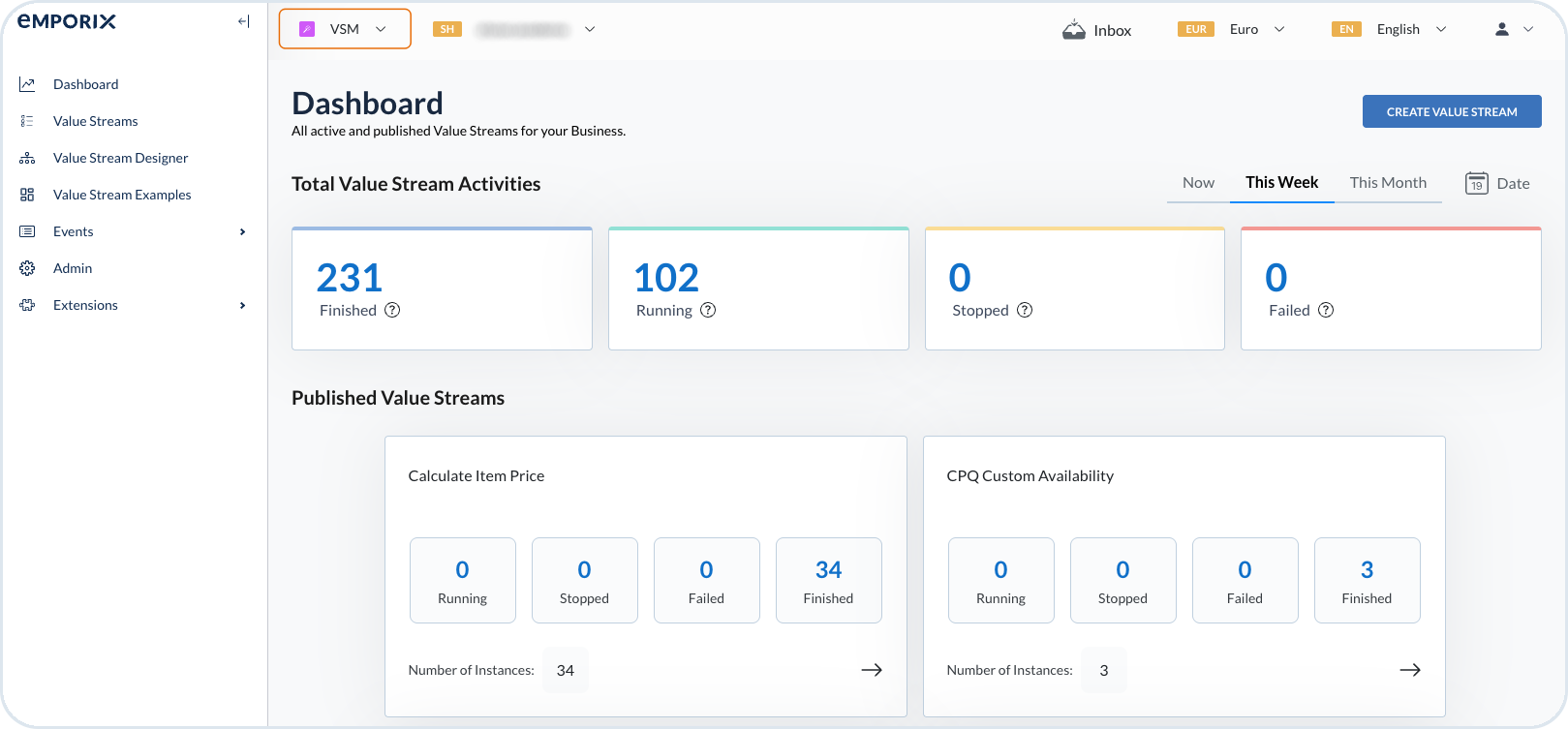
<figure><img src="https://1024162941-files.gitbook.io/~/files/v0/b/gitbook-x-prod.appspot.com/o/spaces%2FrSc4haeKWrTrOPHzdrMO%2Fuploads%2Fgit-blob-a758046d800fe6016027dced13f828afafae39d0%2Fvsm_dashboard.png?alt=media" alt=""><figcaption><p>Value Streams dashboard with summary statistics and process cards</p></figcaption></figure>

The dashboard presents a clear, organized overview of all your value streams. At the top, you can find summary statistics showing the total number of finished, running, stopped, and failed value streams based on your selected time period. You can view the current situation, see summaries for a week or month, or select a custom date range.

Below the summary statistics, you see individual cards for each published value stream. Each card displays the number of running, stopped, failed, and finished instances for that specific process. Click the arrow icon on any card to expand the view and see a detailed list of all instances with their individual statuses.

<figure><img src="https://1024162941-files.gitbook.io/~/files/v0/b/gitbook-x-prod.appspot.com/o/spaces%2FrSc4haeKWrTrOPHzdrMO%2Fuploads%2Fgit-blob-a848bf1ac915d6391ff8d2c60c01c05e8bc309eb%2Fvsm_dashboard_instances.png?alt=media&amp;token=30fead7c-6972-4d19-87ce-1997b197e142" alt=""><figcaption><p>Expanded view showing individual instances and their statuses</p></figcaption></figure>

## Debugger

If you notice that an instance of your value stream was not completed, got stuck, or failed, you can investigate the issue using the **Value Stream Debugger**. Click the magnifying glass icon next to the specific instance to open the Debugger view, where you can review detailed instance logs.

<figure><img src="https://1024162941-files.gitbook.io/~/files/v0/b/gitbook-x-prod.appspot.com/o/spaces%2FrSc4haeKWrTrOPHzdrMO%2Fuploads%2Fgit-blob-00caf2dba14a2394f639668386aab2b6c1d0d35e%2Fvsm_go_to_debugger.png?alt=media&amp;token=19fe2657-2adf-4a17-8141-cd87cd29a14a" alt=""><figcaption><p>Magnifying glass icon to open the Value Stream Debugger</p></figcaption></figure>

{% hint style="info" %}
For more detailed information about using the debugger, replaying steps, and terminating running instances, see the [Value Streams Debugger](/vsm-guides/troubleshooting/value-streams-debugger.md) documentation.
{% endhint %}

## Task Inbox

The dashboard includes a Task Inbox icon that provides quick access to tasks requiring human interaction within your value streams.

<figure><img src="https://1024162941-files.gitbook.io/~/files/v0/b/gitbook-x-prod.appspot.com/o/spaces%2FrSc4haeKWrTrOPHzdrMO%2Fuploads%2Fgit-blob-0c3b2836f8932a51b700c5804a612e4b2373522a%2Fvsm_header.png?alt=media" alt="VSM dashboard header with Task Inbox icon"><figcaption><p>VSM dashboard header with the Task Inbox icon for quick access to assigned tasks</p></figcaption></figure>

When you click the Task Inbox icon, you can view and manage all tasks assigned to you. The Task Inbox consolidates all workflow tasks in one centralized location, making it easy to see what actions are pending and complete them efficiently. For more details on managing tasks, see the [Task Inbox and Tasks](/vsm-guides/settings-and-configuration/admin/task-inbox.md) documentation.


---

# Agent Instructions
This documentation is published with GitBook. GitBook is the documentation platform designed so that both humans and AI agents can read, navigate, and reason over technical content effectively. Learn more at gitbook.com.

## Querying This Documentation
If you need additional information that is not directly available in this page, you can query the documentation by asking a question.

Perform an HTTP GET request on the following URL with the `ask` and `goal` query parameters:

```
GET https://developer.emporix.io/vsm-guides/dashboard.md?ask=<question>&goal=<user_goal>
```

`ask` is the immediate question: it should be specific, self-contained, and written in natural language.
`goal` is what the user is ultimately trying to achieve, the reason they need the answer. Sharing it helps GitBook give you a better, more relevant answer. A goal is most helpful when it describes the outcome the user wants rather than restating the question. For example, with `ask=how do I create an API token`, a goal like `automate deployments from our CI pipeline` lets GitBook tailor the answer to that use case.

The response will contain a direct answer to the question and relevant excerpts and sources from the documentation.

Use this mechanism when the answer is not explicitly present in the current page, you need clarification or additional context, or you want to retrieve related documentation sections.
