> For the complete documentation index, see [llms.txt](https://developer.emporix.io/llms.txt). Markdown versions of documentation pages are available by appending `.md` to page URLs; this page is available as [Markdown](https://developer.emporix.io/vsm-guides/extensibility/forms.md).
# Forms
A value stream may require collecting information from users. Use Form.io to collect data and build customized forms.
## Introduction
Using [Form.io](https://form.io/), Value Stream Modeller allows you to build highly customizable forms. The platform offers extensive customization options and makes it possible to control various aspects of the form's appearance and behavior. You can streamline the data collection processes by creating forms that perfectly align with your specific needs and guidelines.
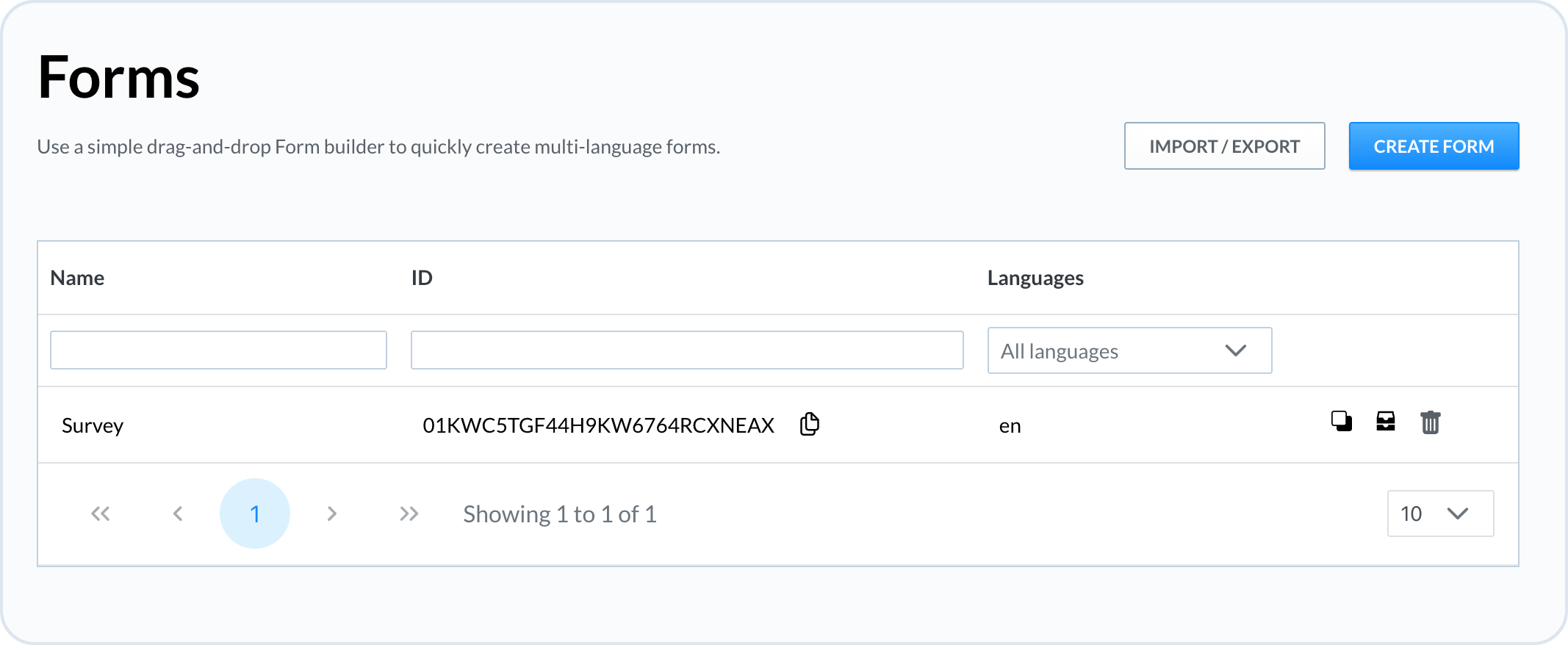
**Forms** is available as an extension in Value Stream Modeller. To access it, go to **VSM** -> **Extensions** -> **Forms**. On the forms page you can:
* see all the forms that were created in your tenant
* create a new form
* create a form link
* duplicate a form
* remove a form
* import and export multiple forms
Moreover, you can filter the forms by name, ID, or the language in which they were prepared.
{% hint style="info" %}
Forms is one of the extensions available in VSM. To learn more about how extensions work in Value Stream Modeller, see the [Extensions](/vsm-guides/extensibility/extensions.md) documentation.
{% endhint %}
## Prerequisites
To start working with the forms builder, you should get familiar with the basic features and the components that are used there.\
To learn about the solution, see the [Form Building](https://help.form.io/userguide/form-building) documentation.
## Creating a new form
{% stepper %}
{% step %}
#### Open Forms
In **VSM** go to **Extensions** -> **Forms**.
{% endstep %}
{% step %}
#### Create a new form
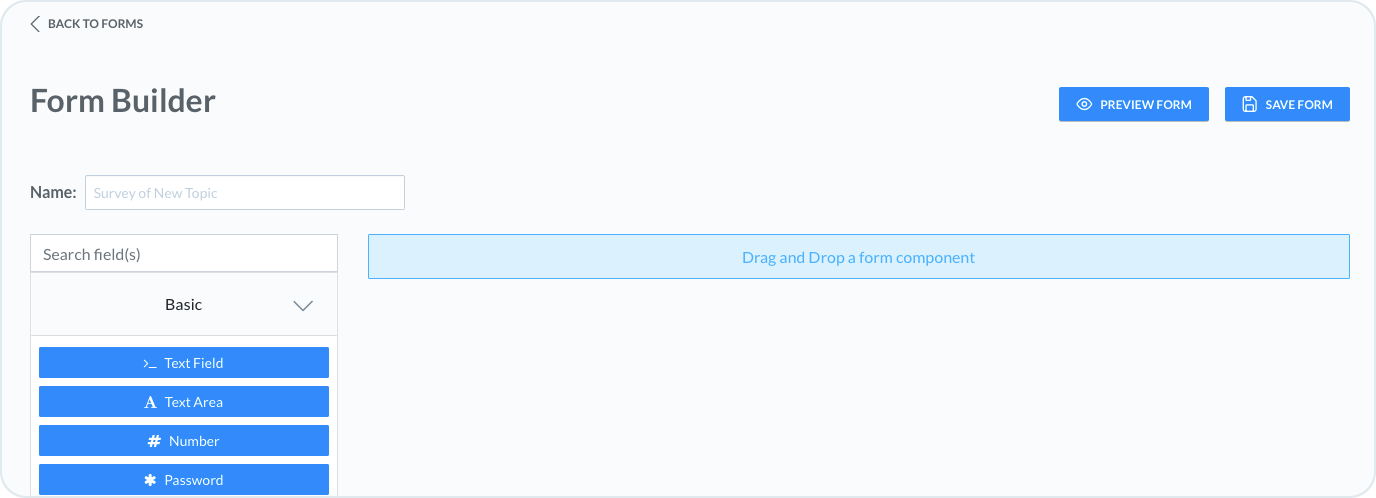
In the forms page, choose the **Create Form** button.
{% endstep %}
{% step %}
#### Add a form name
Add the name for your new form.
{% endstep %}
{% step %}
#### Add components
Choose the components that you want to have in the form. You can select among the [basic](https://help.form.io/userguide/form-building/form-components), [advanced](https://help.form.io/userguide/form-building/advanced-components), [layout](https://help.form.io/userguide/form-building/layout-components) and [data](https://help.form.io/userguide/form-building/data-components) components.
Add the components by using the drag and drop feature, which allows for putting the components at any place, before or after other components.
{% endstep %}
{% step %}
#### Configure components
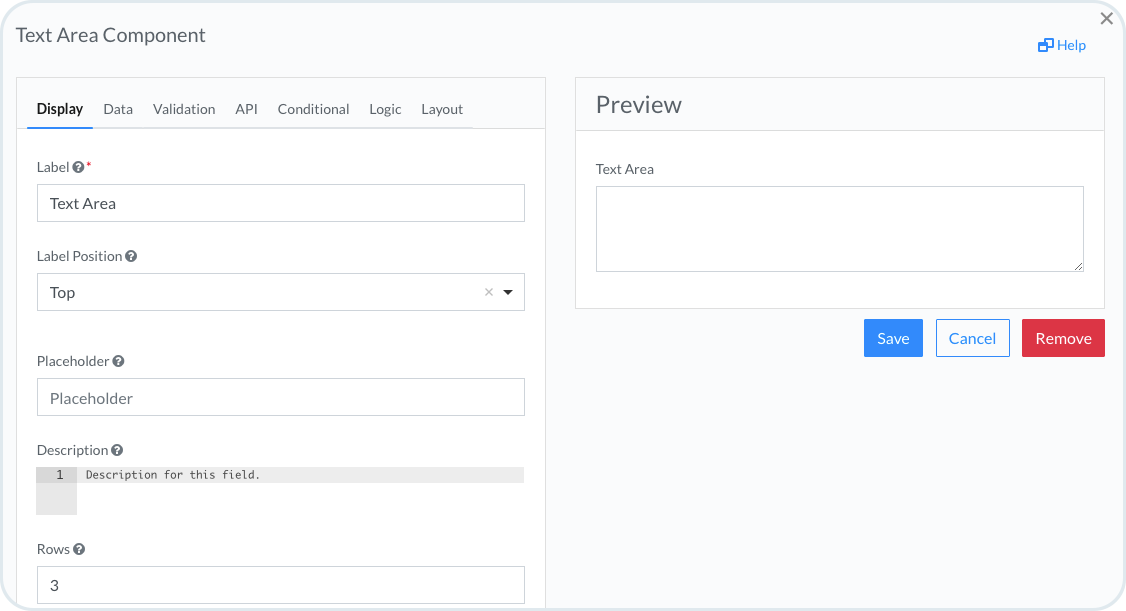
For every component that you add, there's a detailed view with the configuration settings for this specific field in the form. You can customize your component with different values, data or conditions.
For more details, see the [Component Settings](https://help.form.io/userguide/form-building/component-settings) documentation.
{% endstep %}
{% step %}
#### Preview the form
To preview the form after you've added all the components, choose the **Preview Form** button.
{% endstep %}
{% step %}
#### Save the form
When your form is ready and you want to save it, choose the **Save Form** button. The form will appear in the forms page list.
{% endstep %}
{% endstepper %}
### Dynamic data in Forms
Forms can be customized to incorporate dynamic data, allowing for the creation of personalized forms tailored to specific recipients. See the Coffee Preferences example below, to learn how to set up such a form.
{% stepper %}
{% step %}
#### Create a new form
In **VSM** go to **Extensions** -> **Forms** and choose to create a new form.
{% endstep %}
{% step %}
#### Add a dropdown component
Add a dropdown menu component and call it, for example, Coffee Preferences.
{% endstep %}
{% step %}
#### Configure the data source
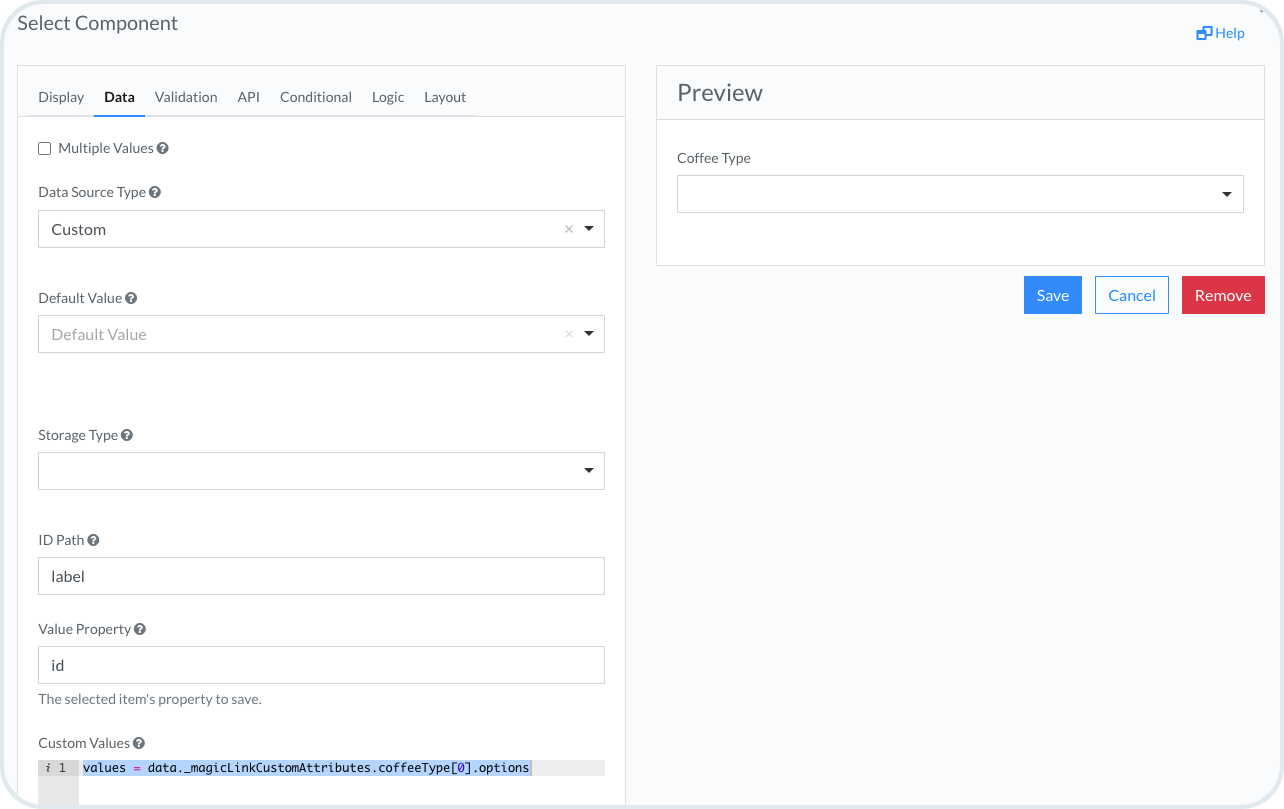
In the Coffee Preferences component, go to the **Data** tab and select **Custom** as a **Data Source Type**.
{% endstep %}
{% step %}
#### Add custom values
Add Custom Values, they are needed to return the value options. For example, `values = data._magicLinkCustomAttributes.coffeeType[0].options`.
{% endstep %}
{% step %}
#### Add text field components
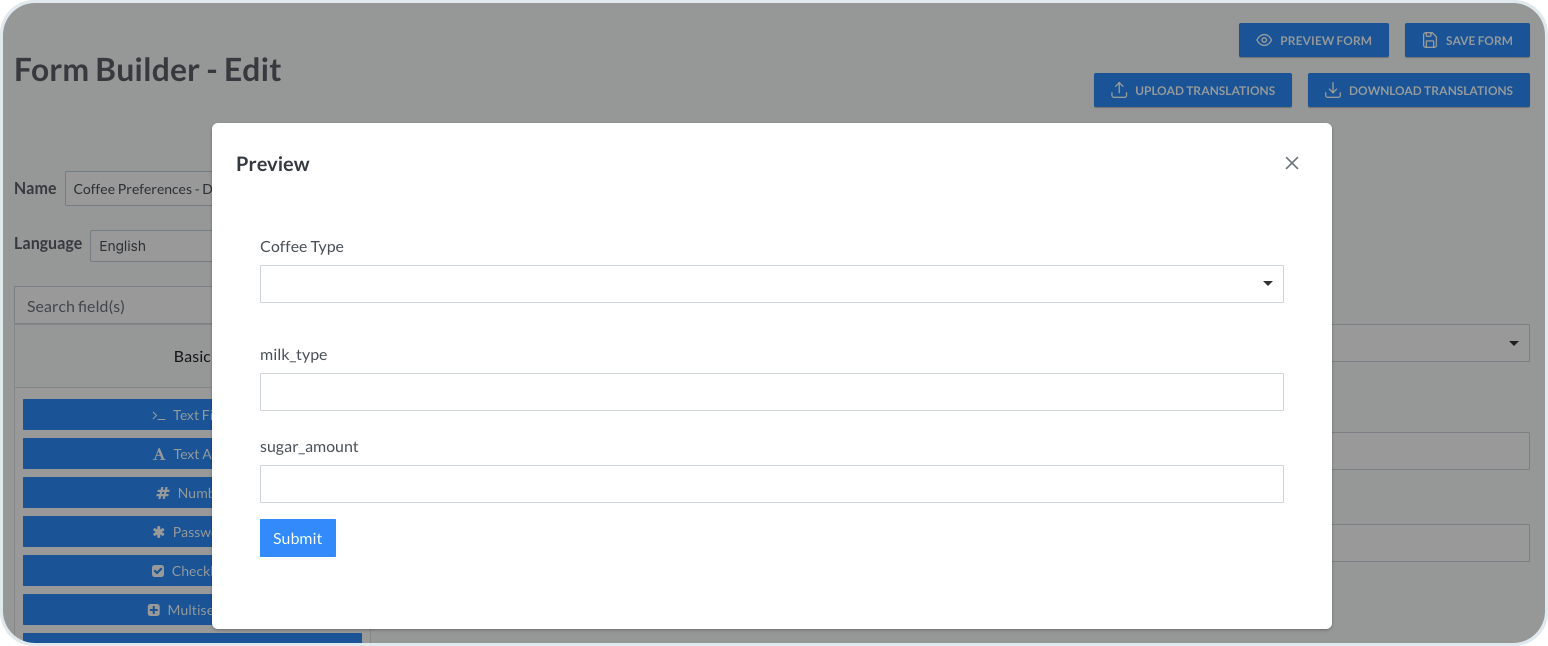
Add **Text Field** components that will also work as additional custom attributes to choose in a form. For example, **milk\_type** and **sugar\_amount**.
{% endstep %}
{% step %}
#### Set a custom default value
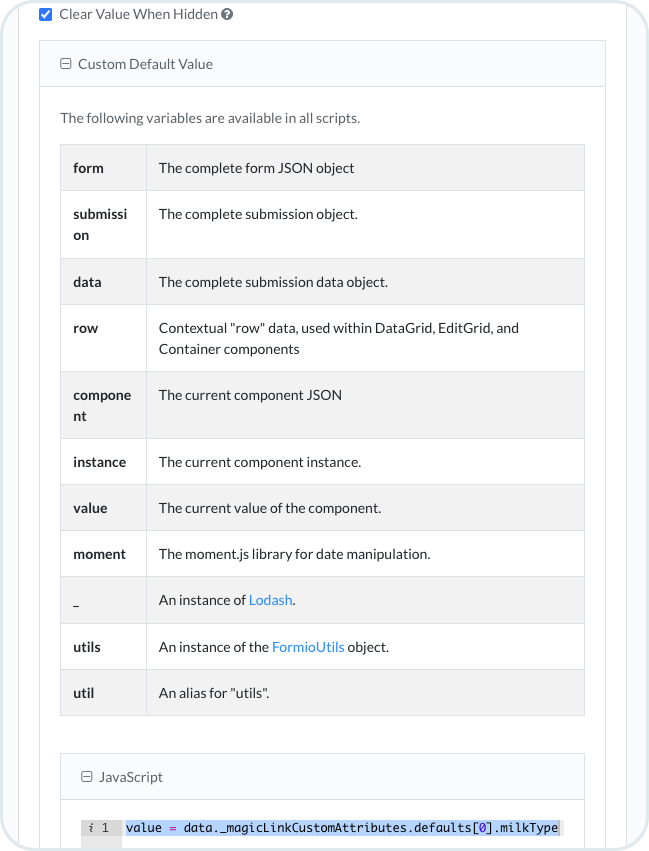
In the **milk\_type** component go to **Data** tab and add a JavaScript code under **Custom Default Value**. For example, `value = data._magicLinkCustomAttributes.defaults[0].milkType`.
{% endstep %}
{% step %}
#### Save and preview the form
Save the form.
After creating the components, you can check the preview of the created form:
{% endstep %}
{% endstepper %}
{% hint style="warning" %}
Forms are referenced by the [Create Form Magic Link](/vsm-guides/value-stream-designer/integration-with-make/make-modules.md#forms-modules) module that allows you to configure custom form attributes. Using forms builder and the module together you can add dynamic, personalized behavior for each recipient. For more information, see the [Form Builder](https://help.form.io/developers/form-development/form-builder) and [VSM and CE Make Modules](/vsm-guides/value-stream-designer/integration-with-make/make-modules.md) documentation.
{% endhint %}
## Editing an existing form
{% stepper %}
{% step %}
#### Open the form
Click on the form in the forms list. The edit mode is opened straight away and you can apply your changes.
{% endstep %}
{% step %}
#### Adjust components
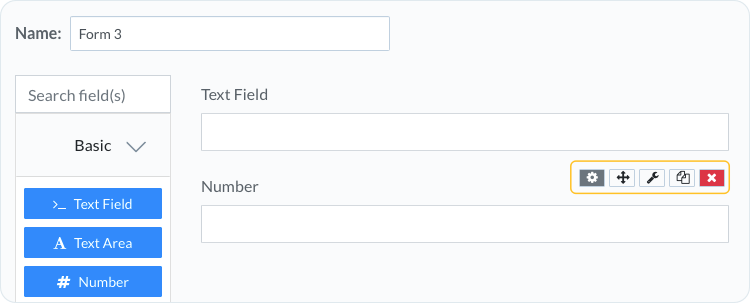
If you want to reorder or edit the selected components, you use the inline components settings and adjust the component to your needs.
For more details, see the [Inline Component Settings](https://help.form.io/userguide/form-building/form-builder-ui#inline-component-settings) documentation.
{% endstep %}
{% endstepper %}
## Duplicating a form
{% stepper %}
{% step %}
#### Duplicate the form
Choose the **Duplicate** icon for the selected form.
{% endstep %}
{% step %}
#### Rename the form
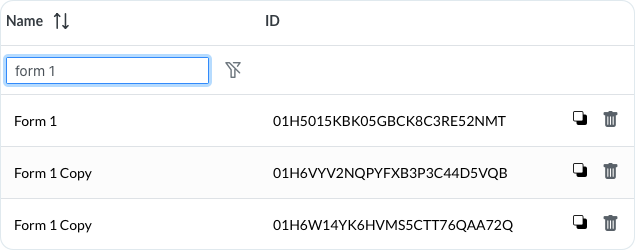
After you duplicate the form, it's added to the forms list and displayed with the suffix "copy" in the name. You can then rename the form.
{% endstep %}
{% endstepper %}
## Deleting a form
{% stepper %}
{% step %}
#### Delete the form
Choose the **Delete** icon for the selected form.
{% endstep %}
{% step %}
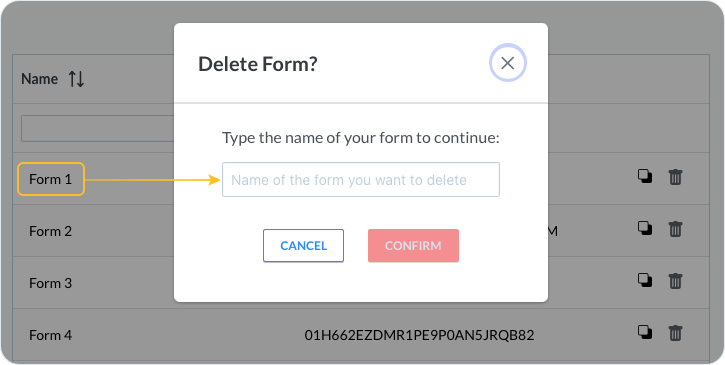
#### Confirm deletion
Confirm the deletion of the form by entering its name in the confirmation window.
{% endstep %}
{% endstepper %}
## Multiple forms import and export
The import/export feature makes it easy to move multiple forms from one tenant to another.
### Export forms
{% stepper %}
{% step %}
#### Open Import/Export
Go to **Management Dashboard** -> **VSM** -> **Extensions** -> **Forms** and choose **Import/Export** button.
{% endstep %}
{% step %}
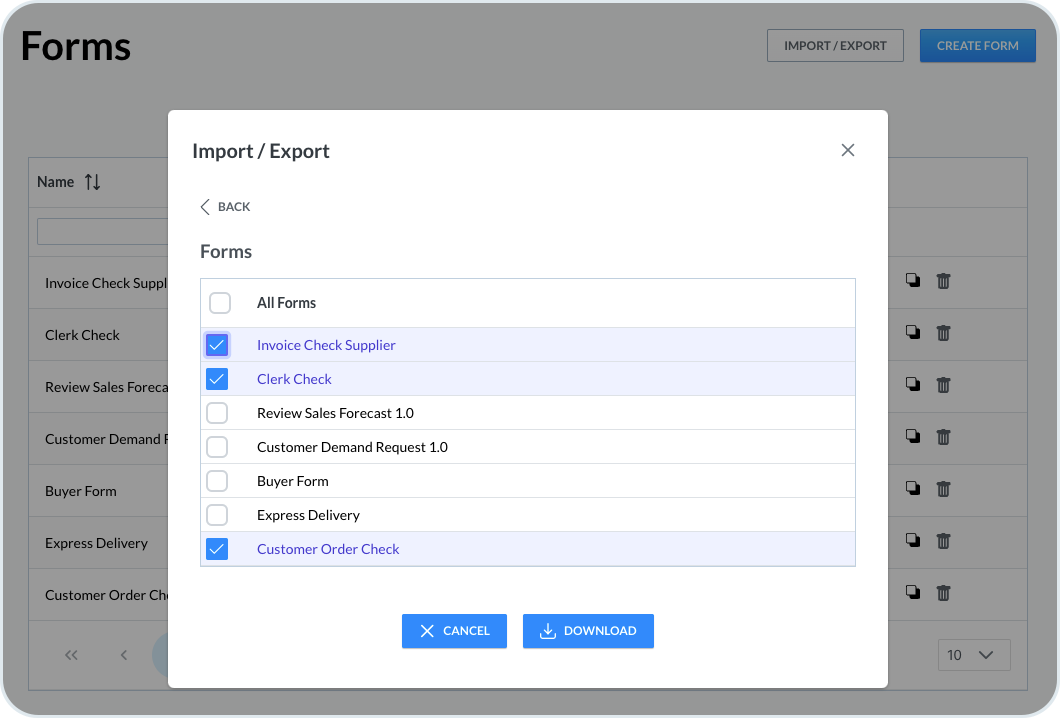
#### Download selected forms
Select the forms that you want to export and choose **Download**. This downloads separate files in a JSON format with all the selected forms.
{% endstep %}
{% endstepper %}
### Import forms
{% stepper %}
{% step %}
#### Open Import/Export on the target tenant
Go to the tenant where you wish to import the forms. In **Management Dashboard** -> **VSM** -> **Extensions** -> **Forms** choose **Import/Export** button.
{% endstep %}
{% step %}
#### Upload the JSON file
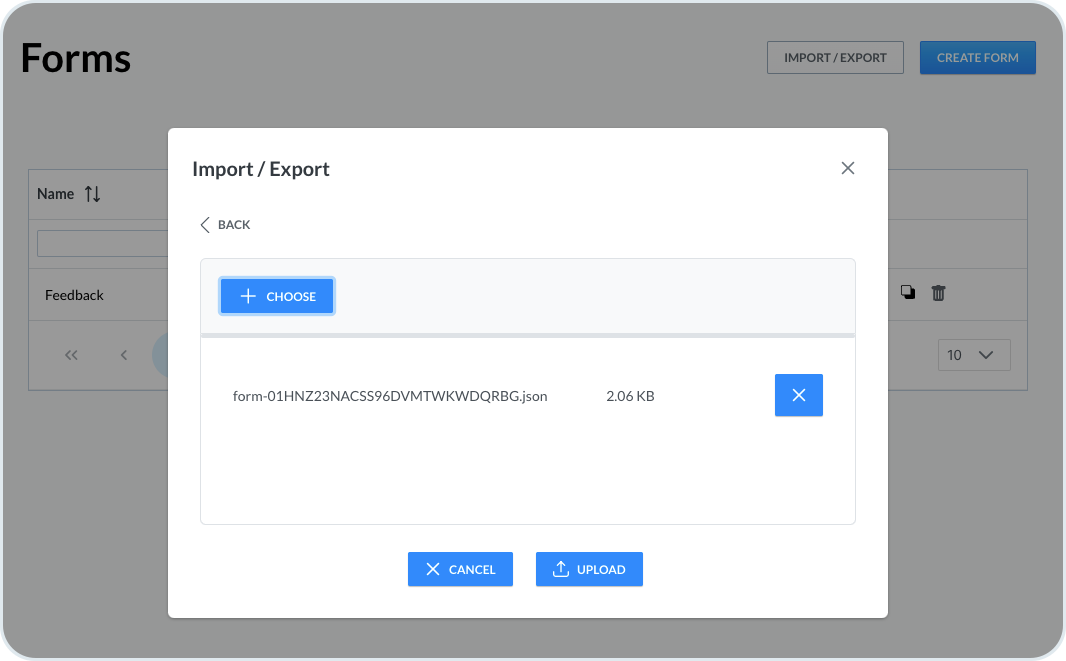
Choose import and add the previously downloaded JSON file.
{% endstep %}
{% step %}
#### Complete the import
Choose **Upload**. This imports all the forms that were previously exported. When the process completes, you get a notification message about successful upload.
{% endstep %}
{% endstepper %}
## Forms localization
Forms localization makes it possible to translate your forms from the base language to other languages. You can create forms with multiple languages, with the same structure as in the original language but with corresponding fields translated.
{% hint style="warning" %}
The translations should always be prepared before the link with the form is sent to the contact.
{% endhint %}
{% stepper %}
{% step %}
#### Open Forms
Go to **Management Dashboard** -> **VSM** -> **Extensions** -> **Forms**.
{% endstep %}
{% step %}
#### Open the form to translate
Open the form that you want to translate.
{% endstep %}
{% step %}
#### Download the translation template
To start the translation, choose the current language that you use and then click on the **Download** button. This downloads `myData.json` file with the names of the fields. You can also use **Download Template**, which downloads a `.json` file without the selected language. For example:
```json
{
"Text Field": "",
"Number": "",
"Password": "",
"Radio": ""
}
```
{% endstep %}
{% step %}
#### Add translated text
Open the downloaded `.json` file and enter the translated text.
Example of an English to German translation:
```json
{
"Text Field": "Textfeld",
"Number": "Nummer",
"Password": "Passwort",
"Radio": "Radio"
}
```
Save the file.
{% endstep %}
{% step %}
#### Upload translations
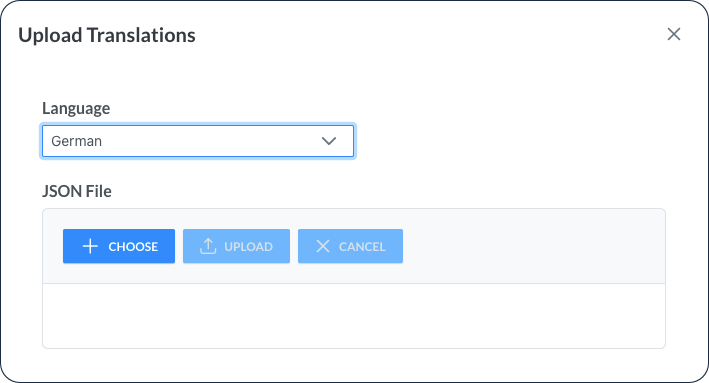
Choose **Upload Translations** to upload the translated `.json` file back to the form in Management Dashboard.
{% endstep %}
{% step %}
#### Select the translation language
Choose the translation language and add the `.json` file.
{% endstep %}
{% step %}
#### Save the form
Choose **Save**.
**Result**: Your form is now available in two languages: English (in this case it's the default) and German. Both of the versions are visible in the form preview.
{% endstep %}
{% endstepper %}
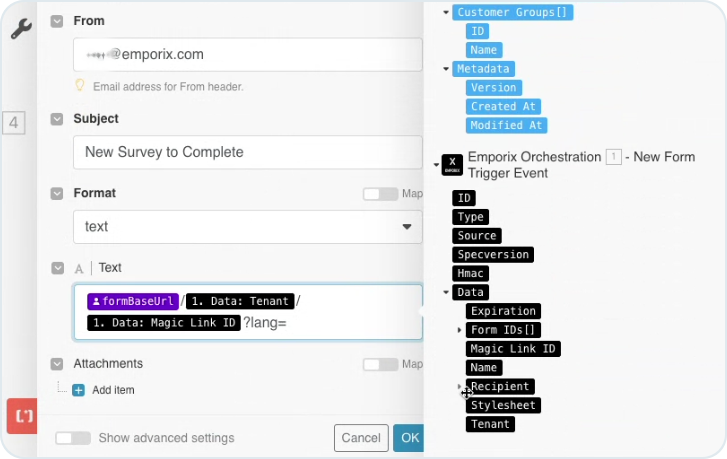
When the form is translated, there's a relevant `lang` parameter visible in the URL of the form. The parameter can also be used in configuration of a mail module in a Make scenario responsible for sending the forms.
{% hint style="info" %}
To learn how to send forms submission data to Celonis, see [Sending Form Submission Data from VSM to Celonis](/vsm-guides/value-stream-designer/celonis-data-flow/sending-form-submission-data-to-celonis.md) documentation.
{% endhint %}
---
# Agent Instructions
This documentation is published with GitBook. GitBook is the documentation platform designed so that both humans and AI agents can read, navigate, and reason over technical content effectively. Learn more at gitbook.com.
## Querying This Documentation
If you need additional information that is not directly available in this page, you can query the documentation by asking a question.
Perform an HTTP GET request on the following URL with the `ask` and `goal` query parameters:
```
GET https://developer.emporix.io/vsm-guides/extensibility/forms.md?ask=&goal=
```
`ask` is the immediate question: it should be specific, self-contained, and written in natural language.
`goal` is what the user is ultimately trying to achieve, the reason they need the answer. Sharing it helps GitBook give you a better, more relevant answer. A goal is most helpful when it describes the outcome the user wants rather than restating the question. For example, with `ask=how do I create an API token`, a goal like `automate deployments from our CI pipeline` lets GitBook tailor the answer to that use case.
The response will contain a direct answer to the question and relevant excerpts and sources from the documentation.
Use this mechanism when the answer is not explicitly present in the current page, you need clarification or additional context, or you want to retrieve related documentation sections.