Value Streams Debugger
Monitor process instances, filter them by directory or status, inspect step status, and replay or reply to single steps with role-based debugger access.
Introduction
The Value Streams Debugger helps authorized users monitor running process instances, identify failed steps, and replay or reply to selected steps without restarting the entire process. In the debug mode, you can:
Open a process instance overview directly from the value stream view.
Filter running process instances by directory, status, or time.
See the executed path in the model and identify failed steps.
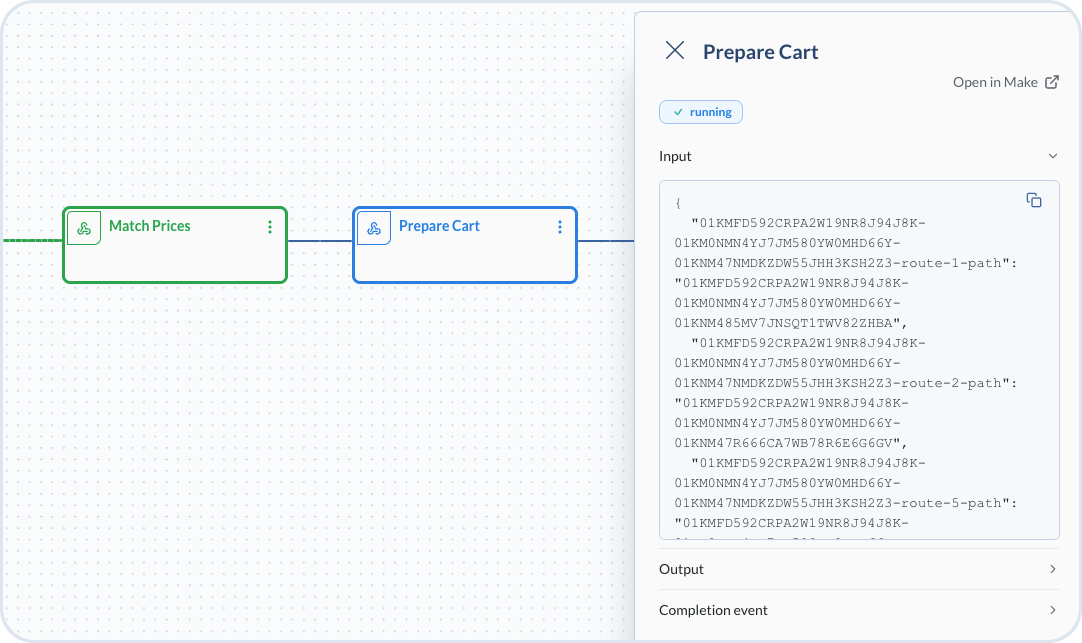
Open step-level details to review input, output, completion event, and status.
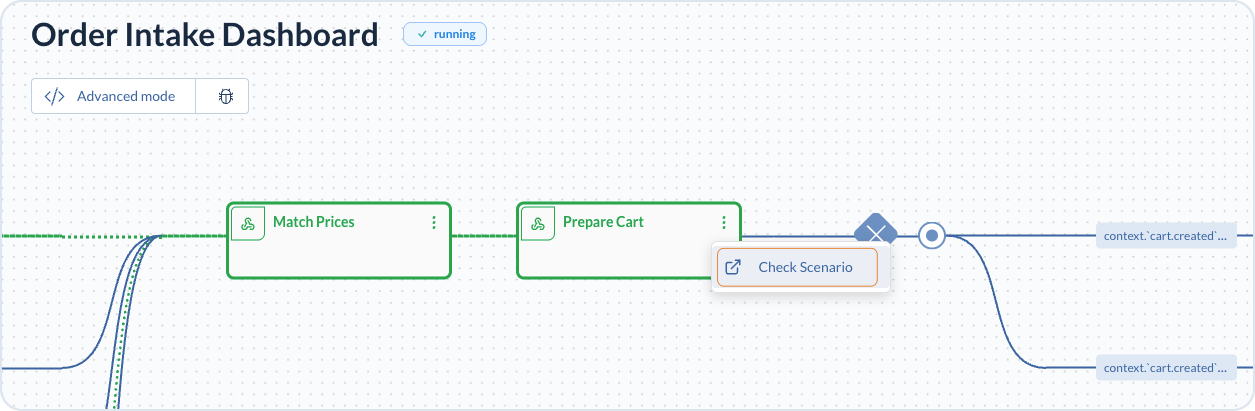
Open the connected Make scenario from the selected step.
Replay a single step and continue processing from that point.
Reply to a failed step to recover a stuck or failed process instance.
If your value stream uses subflows, debug each child flow separately to investigate the failures.
Debug access and permissions
Debugger access is role-based:
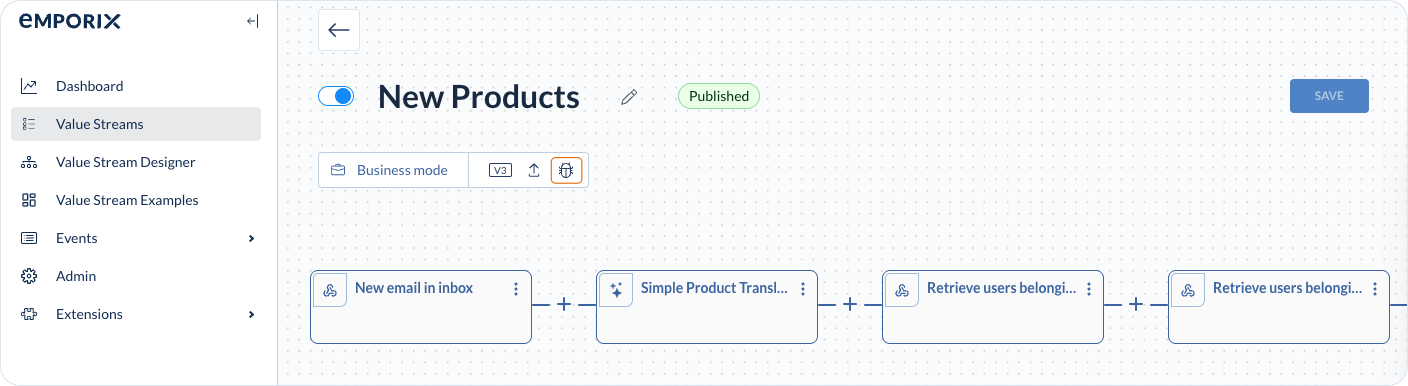
The debugger icon is visible in the Value Stream Modeller, for each specific value stream, only for users with the required admin role.
You can create a dedicated user group and assign the required role to that group.
Users without authorization cannot see the debugger icon and cannot access debugger data.

Process instance overview
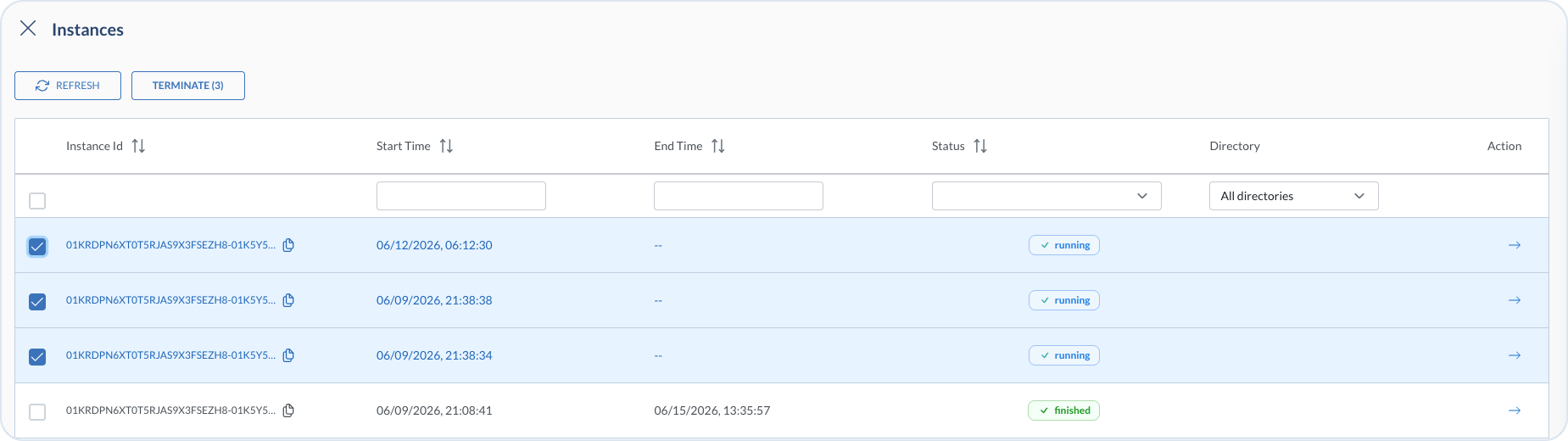
When you select the debugger icon, the Instances list opens for that value stream. You can filter instances by start time, end time, status, or directory, and sort them by Instance ID or time.
The Directory column defaults to All directories. Choose a directory to show only instances from value streams assigned to that directory.

You can terminate running instances directly from this view. Select one or more instances and choose Terminate. The button shows how many instances are selected. The system opens a confirmation dialog before terminating the selected instances.

Instance execution view
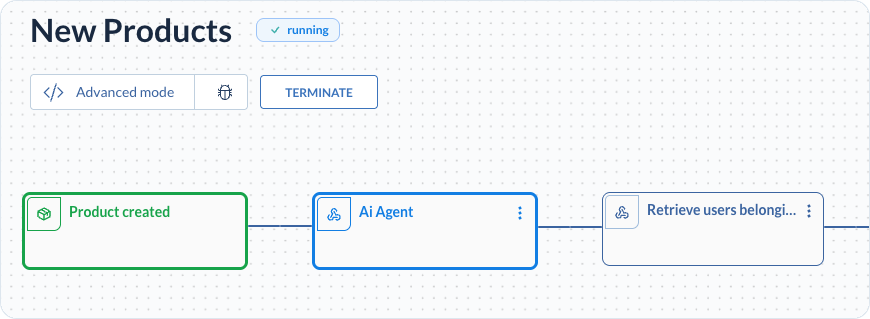
When you select an instance, the process opens in advanced mode. In the model view:
The actually executed path is highlighted in green.
If the instance is still running, or a step was not executed for any reason, it is highlighted in the relevant color. You can view the details in the steps.
Failed steps are marked with a red status icon.
Each step shows its execution status.
You can also terminate a running instance from this view. Choose Terminate in the toolbar. As in the instances list, the system opens a confirmation dialog before the instance is terminated.

Step-level details
Click any step in the executed path to open a side panel with the process details. For iterator steps, the panel shows the status of the last available iteration.

Replay of individual steps
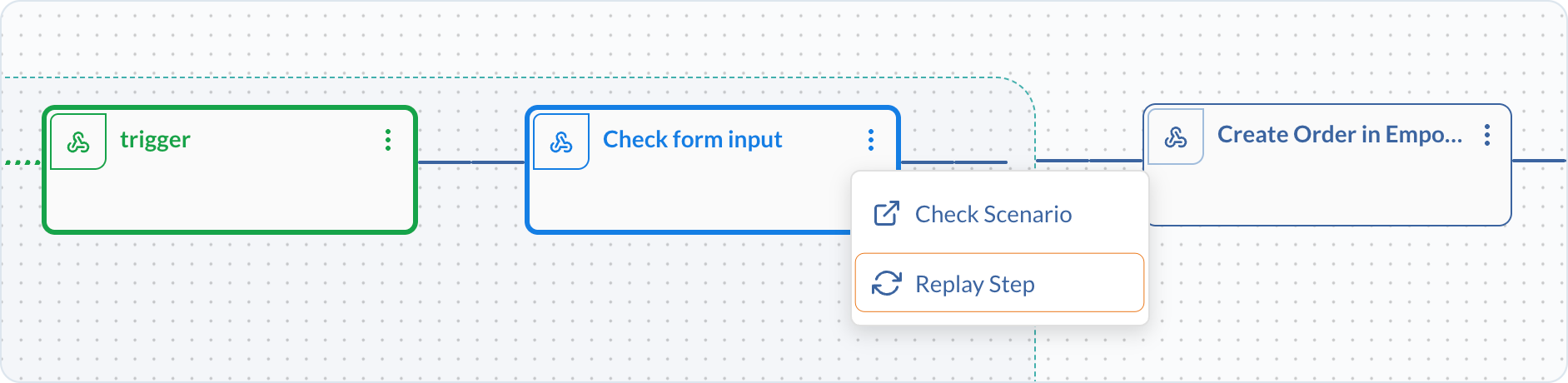
The debugger lets you replay a single step of a value stream instance. Use this when you want to test a Make scenario in a step directly from VSM, without running the entire process from the trigger. Replay is available for steps built with Make scenarios that are in a running or finished status. It cannot be used for triggers.
To replay a step:
Open a process instance in the debugger and select the step you want to re-run.
Open the step menu (three dots) on the step in the executed path.
Choose Replay Step.

After replay is triggered:
The process continues from that step onward.
You do not need to restart the entire process instance.
Step logs are updated with the latest results, and the run is visible in Make's scenario history.
In the debugger logs for the step, the input data includes a
replayidthat identifies the replay run. The outcome of the replayed step becomes part of the process context.
Replaying a single step does not create a new running value stream instance.
Detailed technical error payloads are not exposed in the debugger at this stage; only the success or failure state is visible.
View related Make scenarios
From a selected step, you can open the corresponding Make scenario. This option is available only when the single sign-on integration is working.

Last updated
Was this helpful?