> For the complete documentation index, see [llms.txt](https://developer.emporix.io/llms.txt). Markdown versions of documentation pages are available by appending `.md` to page URLs; this page is available as [Markdown](https://developer.emporix.io/vsm-guides/value-streams/import-export.md).
# Import and Export
Learn how to import and export value streams between tenants with version-aware sync.
The Import and Export feature lets you move value streams between tenants, for example, from a test environment to production. When you re-import an updated export, the system can add a new version to an existing value stream instead of creating a duplicate, so you keep a clear version history across environments. To view version history after import, open the value stream and check the displayed version. For details on versioning in the designer, see [Versioning](/vsm-guides/value-stream-designer/versioning.md).
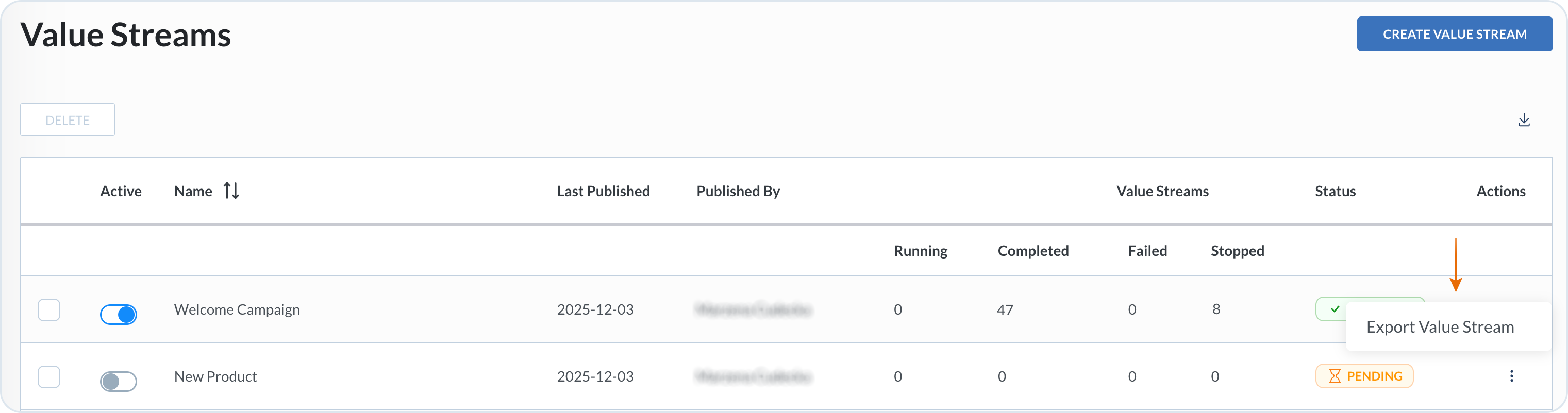
Exporting a value stream from the Value Streams list
### Exporting a value stream
{% stepper %}
{% step %}
**Select the process you want to export**
Go to the **Value Streams** view and select the three dots icon next to the process you want to export.
{% endstep %}
{% step %}
**Select Export Value Stream**
The system exports the process automatically and downloads it as a `JSON` file.
{% endstep %}
{% endstepper %}
Each export includes version information from the source value stream. On import, the system uses this information to determine whether the file is a new template or an update to one already present in the target tenant.
### Importing a value stream
{% stepper %}
{% step %}
**Select the Import button**
Go to the **Value Streams** view and select the **Import** button at the top right, above the list of processes.
{% endstep %}
{% step %}
**Upload the `JSON` file**
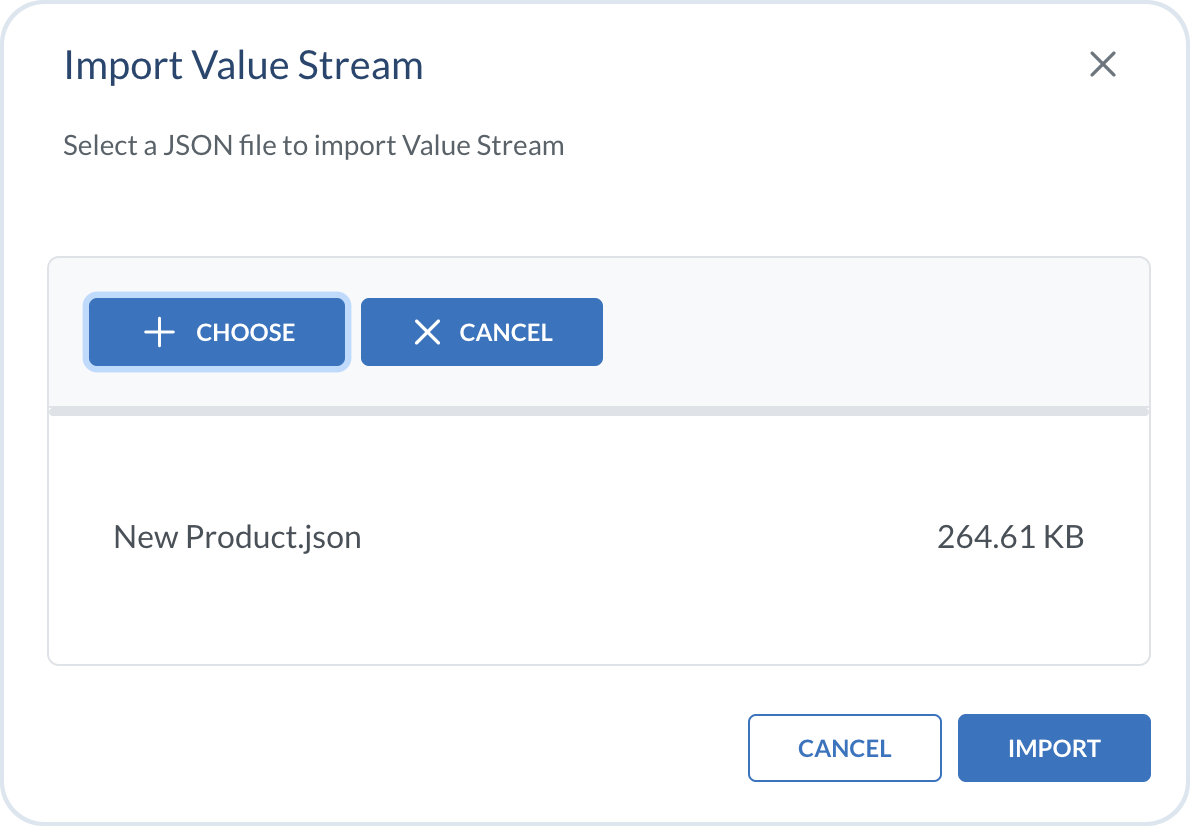
Upload the `JSON` file containing your process. You can drag and drop the file or select it using the standard file browser. If you selected the wrong file, select **Cancel** to select another file. To abandon the entire operation, select **Discard**.
{% endstep %}
{% step %}
**Start the import**
Choose **Import**. What happens next depends on whether the template is new or already in your tenant:
* **First import** – a new value stream appears in the list. **Last published** shows the import date.
* **Re-import of an updated export** – a new version is added inside the existing value stream. The new version matches the imported export. Open the value stream and check the version to verify.
* **Re-import of a version already present** – the import is skipped and the value stream is unchanged.
Importing a value stream JSON export file
{% endstep %}
{% endstepper %}
### Import behavior and versioning
When you import an export file, the system checks whether the template already exists in your tenant and whether that version was imported before.
| Scenario | What happens |
| ---------------------------------------- | -------------------------------------------------- |
| New template (not yet in the tenant) | Creates a new value stream |
| Known template, new version | Appends a new version to the existing value stream |
| Known template, version already imported | Skips the import; no duplicate version |
```mermaid
---
config:
layout: fixed
theme: base
look: classic
themeVariables:
background: transparent
lineColor: "#9CBBE3"
arrowheadColor: "#9CBBE3"
edgeLabelBackground: "#FFC128"
edgeLabelTextColor: "#4C5359"
---
flowchart TD
upload["UPLOAD EXPORT JSON"] --> detect["TEMPLATE ALREADY IN TENANT?"]
detect -->|NO| newVS["CREATE NEW VALUE STREAM"]
detect -->|YES| versionCheck["VERSION ALREADY IMPORTED?"]
versionCheck -->|YES| skip["SKIP IMPORT"]
versionCheck -->|NO| addVersion["ADD NEW VERSION TO EXISTING VALUE STREAM"]
upload@{ shape: rounded}
detect@{ shape: rounded}
newVS@{ shape: rounded}
versionCheck@{ shape: rounded}
skip@{ shape: rounded}
addVersion@{ shape: rounded}
upload:::Class_01
newVS:::Class_01
skip:::Class_01
addVersion:::Class_01
detect:::Class_02
versionCheck:::Class_02
classDef Class_01 fill:#F2F6FA, stroke:#4C5359
classDef Class_02 fill:#A1BDDC, stroke:#4C5359
```
When the template already exists, the import does not create a new value stream in the list. Instead, it follows the roll-forward versioning model described in [Versioning](/vsm-guides/value-stream-designer/versioning.md). After a successful version update, the value stream contains a new version identical to the imported export.
If the export omits certain fields, the import inherits missing values from the existing value stream version. This helps keep staging and production configurations aligned when you move updates between tenants.
When you import a new version of an existing value stream and the target tenant already has the custom user events referenced by the process, those events are not re-imported. This avoids duplicates in the [Event Registry](/vsm-guides/settings-and-configuration/events/event-registry.md). Pre-configured Commerce Engine events are not affected.
{% hint style="info" %}
After re-importing an updated export, open the value stream and check its version.
{% endhint %}
### What gets imported
The value streams are imported along with:
* **Events** – on first import, custom user events are added to the [Event Registry](/vsm-guides/settings-and-configuration/events/event-registry.md). When you import a new version of an existing value stream, existing user events are reused and only missing events are added.
* **Make scenarios** – all the scenarios that are used in your process are imported with the same configuration.
* **Subflows** – when you have subflows configured in your process, the linked process is imported as well.
* **Conditions** – the process is imported together with conditions applied at the step level.
* **Rulestore** – the rules set up for your value stream are reflected in the new tenant.
* **Forms** – forms used by the value stream are copied to the new tenant as well.
### Common use cases
* **Staging-to-production sync** – export a refined value stream from a sandbox tenant and import it into production as the next version without breaking existing links.
* **Standardized template sharing** – a central operations team distributes a gold-standard template across business units so each tenant stays on the latest version.
* **Iterative process improvement** – update a workflow in one tenant, export it, and re-import it elsewhere to test new logic while keeping the previous version available as a fallback.
{% hint style="warning" %}
* If any of your Make scenarios include connections that don’t exist in the target tenant, you need to recreate those connections. For example, if you have a Gmail connection in your test tenant, you need to set it up again in the production tenant.
* Currently, cloud function connectors can't be exported/imported together with a value stream.
* After import or copy, you may temporarily see multiple scenarios with the same name in Make. To identify the correct one, check the scenario folder that corresponds to your imported value stream.
* Re-importing the same export version has no effect. The value stream is unchanged.
* If import fails and the value stream uses Make data stores, reduce the data store size in Make or set a **Limit** on the Data store module. See [Import fails because of Make data stores](/vsm-guides/troubleshooting/faq/import-fails-make-data-stores.md).
{% endhint %}
---
# Agent Instructions
This documentation is published with GitBook. GitBook is the documentation platform designed so that both humans and AI agents can read, navigate, and reason over technical content effectively. Learn more at gitbook.com.
## Querying This Documentation
If you need additional information that is not directly available in this page, you can query the documentation by asking a question.
Perform an HTTP GET request on the following URL with the `ask` and `goal` query parameters:
```
GET https://developer.emporix.io/vsm-guides/value-streams/import-export.md?ask=&goal=
```
`ask` is the immediate question: it should be specific, self-contained, and written in natural language.
`goal` is what the user is ultimately trying to achieve, the reason they need the answer. Sharing it helps GitBook give you a better, more relevant answer. A goal is most helpful when it describes the outcome the user wants rather than restating the question. For example, with `ask=how do I create an API token`, a goal like `automate deployments from our CI pipeline` lets GitBook tailor the answer to that use case.
The response will contain a direct answer to the question and relevant excerpts and sources from the documentation.
Use this mechanism when the answer is not explicitly present in the current page, you need clarification or additional context, or you want to retrieve related documentation sections.