> For the complete documentation index, see [llms.txt](https://developer.emporix.io/llms.txt). Markdown versions of documentation pages are available by appending `.md` to page URLs; this page is available as [Markdown](https://developer.emporix.io/import-tool/readme.md).

# Import Tool

Learn how the Emporix Import Tool brings data from external systems into Emporix with connections, streams, and import monitoring.

The Import Tool runs as part of Autonomous Commerce Execution<sup>®</sup> (ACE<sup>™</sup>). You can access it from the Management Dashboard, enable it through the Commerce Engine, and manage who can use it with standard identity and access management. It's a data ingestion capability that you can use to run full and delta imports of large datasets from external systems, for example Celonis, SAP, a CRM, or an HTTP source, into Emporix. During import, the Import Tool applies schema rules and validation so that imported data stays consistent with the source.

The Import Tool is available as its own perspective. Authorized users open it to configure connections, define streams, monitor run health, and review imported records. The tool includes **Dashboard**, **Imports**, **Connections**, **Imported Data**, and **Extensions** views where you can configure and manage data imports.

{% hint style="info" %}
New to the Import Tool? Walk through [Running Your First Import](https://github.com/emporix/emporix-documentation-portal/tree/master/content/import-tool-guides/learning-path.md) in the product, then use the other guides for options and examples.
{% endhint %}

## How it works

The Import Tool connects to an external source, maps records in streams, then upserts them into Emporix. You monitor results on the **Dashboard** and in **Imported Data**.

```mermaid
---
config:
  layout: fixed
  theme: base
  look: classic
  themeVariables:
    background: transparent
    lineColor: "#9CBBE3"
    arrowheadColor: "#9CBBE3"
    edgeLabelBackground: "#FFC128"
    edgeLabelTextColor: "#4C5359"
---
flowchart LR
  subgraph ext [External sources]
    direction LR
    celonis[Celonis]
    httpSrc[HTTP / REST API]
  end

  subgraph tool [Import Tool]
    direction LR
    conn[Stored and tested connection]
    importJob[Import job]
    streams[Stream configuration]
    mapping[Field mapping]
    runNode[Run]
  end

  subgraph dest [Emporix]
    direction LR
    entities[Target entities]
    imported[Imported Data]
    dash[Dashboard]
  end

  ext -->|connect| conn
  conn -->|selected source| streams
  importJob -->|contains| streams
  streams --> mapping
  mapping -->|publish| runNode
  importJob -->|schedule or start| runNode
  runNode -->|upsert| entities
  runNode -->|record outcomes| imported
  runNode -->|run metrics and health| dash

  celonis@{ shape: rounded}
  httpSrc@{ shape: rounded}
  conn@{ shape: rounded}
  importJob@{ shape: rounded}
  streams@{ shape: rounded}
  mapping@{ shape: rounded}
  runNode@{ shape: rounded}
  entities@{ shape: rounded}
  imported@{ shape: rounded}
  dash@{ shape: rounded}

  celonis:::source
  httpSrc:::source
  conn:::toolStep
  importJob:::toolStep
  streams:::toolStep
  mapping:::toolStep
  runNode:::runStep
  entities:::outcome
  imported:::outcome
  dash:::outcome

  classDef source fill:#A1BDDC,stroke:#4C5359
  classDef toolStep fill:#DDE6EE,stroke:#4C5359
  classDef runStep fill:#F2F6FA,stroke:#4C5359
  classDef outcome fill:#F2F6FA,stroke:#4C5359
  classDef graphBox stroke-width:1px,stroke-dasharray:0,stroke:#A1BDDC,fill:#DDE6EE

  class ext graphBox
  class tool graphBox
  class dest graphBox
  style ext color:#4C5359
  style tool color:#4C5359
  style dest color:#4C5359
```

Key features:

* Configure source connections and store credentials for external systems.
* Create streams that map source data to target entities in Emporix.
* Run streams on a schedule or on demand, including full, delta, force, and dry-run modes.
* Monitor import health, success rate, failures, and freshness on the Dashboard.
* Search and filter imported records by status, key, or field values.
* Control who can manage and trigger imports through user groups and access controls.

## Typical use cases

<table data-view="cards"><thead><tr><th align="center"></th><th align="center"></th><th align="center"></th><th data-hidden data-card-target data-type="content-ref"></th></tr></thead><tbody><tr><td align="center"><i class="fa-file-import">:file-import:</i></td><td align="center"><strong>Bulk data imports</strong></td><td align="center">Load high volumes of records from external systems into target entities in Emporix.</td><td><a href="/import-tool/import-setup-and-jobs/imports.md">Imports</a></td></tr><tr><td align="center"><i class="fa-rotate-reverse">:rotate-reverse:</i></td><td align="center"><strong>ERP synchronization</strong></td><td align="center">Import updates on a schedule so Emporix stays aligned with your ERP.</td><td><a href="/import-tool/import-setup-and-jobs/imports.md">Imports</a></td></tr><tr><td align="center"><i class="fa-bolt">:bolt:</i></td><td align="center"><strong>On-demand imports</strong></td><td align="center">Trigger imports from external tools or automation flows when you need immediate synchronization.</td><td><a href="/import-tool/import-setup-and-jobs/imports.md">Imports</a></td></tr></tbody></table>

## Dashboard

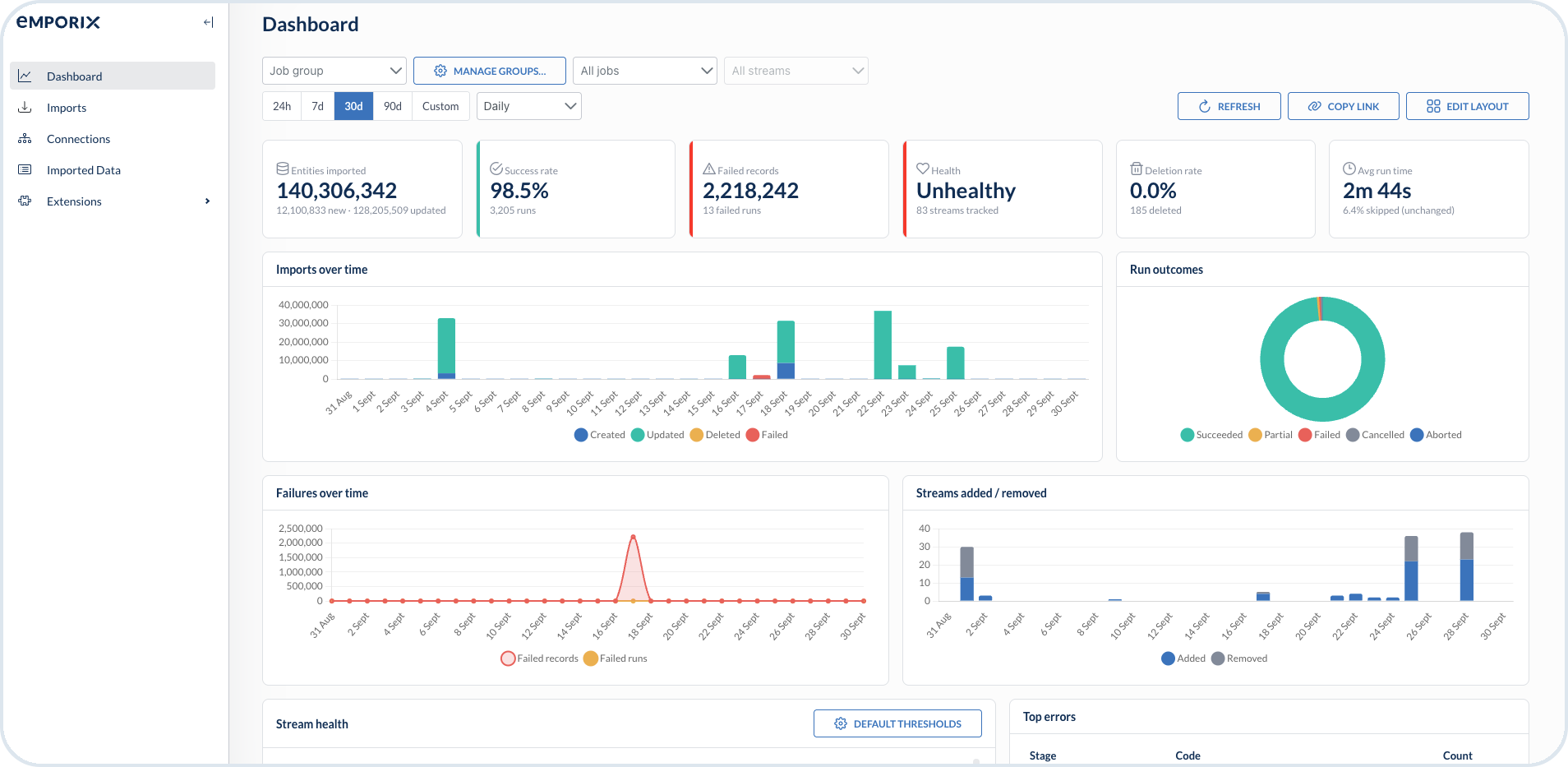
**Dashboard** is the first view when you open the Import Tool. Use it to monitor KPIs, run outcomes, stream health, and failures over a selected time range.

{% hint style="info" %}
For filters, charts, stream health, and health thresholds, see [Dashboard](/import-tool/dashboard.md).
{% endhint %}

<figure><img src="https://2637457592-files.gitbook.io/~/files/v0/b/gitbook-x-prod.appspot.com/o/spaces%2F9VS91qn3Ylwd58YivX1A%2Fuploads%2Fgit-blob-93463b0292421da7679cb6937249250ec7647ce2%2Fit_dashboard.png?alt=media" alt="Import Tool Dashboard with KPI cards and charts"><figcaption><p>Dashboard with KPI cards, time-range filters, and import charts</p></figcaption></figure>

## Imports

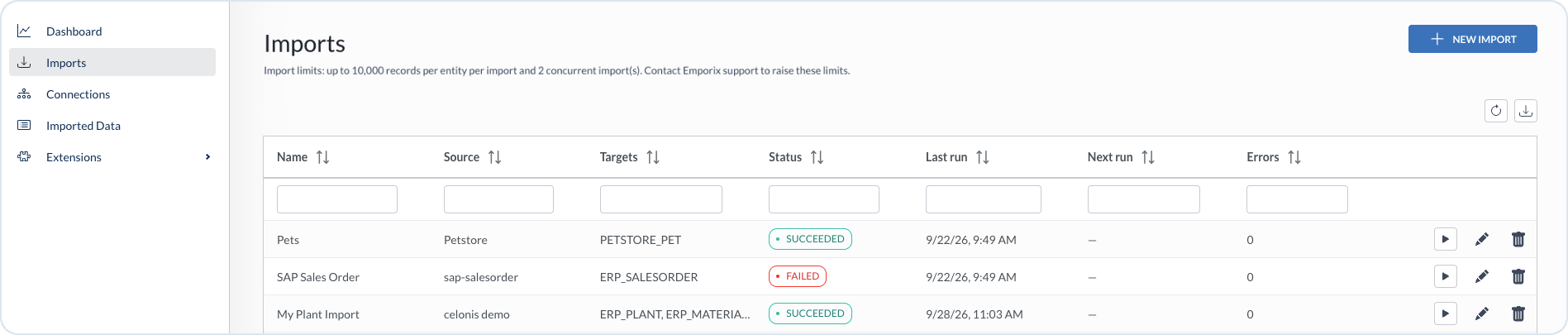
**Imports** lists your import jobs. From here you create imports, review source, targets, last and next run times, status, and errors, and open an import with **Edit** to manage its streams.

{% hint style="info" %}
For creating imports and managing the job list, see [Imports](/import-tool/import-setup-and-jobs/imports.md). For the complete stream workflow, start with [Streams](/import-tool/import-setup-and-jobs/imports/streams.md).
{% endhint %}

<figure><img src="https://2637457592-files.gitbook.io/~/files/v0/b/gitbook-x-prod.appspot.com/o/spaces%2F9VS91qn3Ylwd58YivX1A%2Fuploads%2Fgit-blob-22a87b195c56688059dd0092c1928551a8ba6771%2Fit_import_management.png?alt=media" alt="Imports list with status and actions"><figcaption><p>Imports list with run status and run, edit, and delete actions</p></figcaption></figure>

## Connections

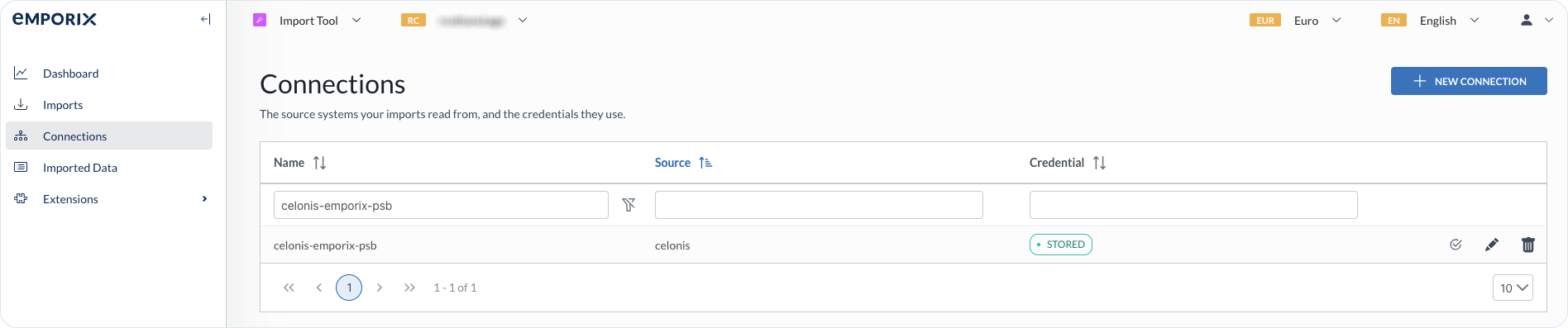
Before you run an import, you need to set up a connection to the external source. On **Connections** you add a connection, select the **Source type**, store credentials, and test that the connection works.

{% hint style="info" %}
For the full connection setup procedure, see [Connections](/import-tool/import-setup-and-jobs/connections.md).
{% endhint %}

<figure><img src="https://2637457592-files.gitbook.io/~/files/v0/b/gitbook-x-prod.appspot.com/o/spaces%2F9VS91qn3Ylwd58YivX1A%2Fuploads%2Fgit-blob-2c6a52dc3a0b3709edcb6a861ab530ff02aa5595%2Fit_connections.png?alt=media" alt="Connections page listing configured sources with credential status"><figcaption><p>Connections page showing configured sources, credential status, and Test, Edit, and Delete actions</p></figcaption></figure>

## Imported Data

The Import Tool keeps a change ledger of all records it imports. After an import runs, you can use **Imported Data** to inspect what items were expected together with their source and Emporix key. Filter by target type and status, then search by key or field value to review record outcomes and import times.

{% hint style="info" %}
For the global and stream-scoped views, see [Imported Data](/import-tool/import-setup-and-jobs/imported-data.md).
{% endhint %}

<figure><img src="https://2637457592-files.gitbook.io/~/files/v0/b/gitbook-x-prod.appspot.com/o/spaces%2F9VS91qn3Ylwd58YivX1A%2Fuploads%2Fgit-blob-b240688db46c6b6148e7ce711317d2d884765b72%2Fit_imported_data.png?alt=media" alt="Imported Data view with target type, status, search, and results"><figcaption><p>Imported Data with record keys, Emporix IDs, outcomes, and import times</p></figcaption></figure>

{% hint style="info" %}
Before you use the Import Tool, set up the required access controls, user group, and perspective. For details, see the [Prerequisites](/import-tool/import-setup-and-jobs/prerequisites.md) guide.
{% endhint %}


---

# Agent Instructions
This documentation is published with GitBook. GitBook is the documentation platform designed so that both humans and AI agents can read, navigate, and reason over technical content effectively. Learn more at gitbook.com.

## Querying This Documentation
If you need additional information that is not directly available in this page, you can query the documentation dynamically by asking a question.

Perform an HTTP GET request on the current page URL with the `ask` query parameter, and the optional `goal` query parameter:

```
GET https://developer.emporix.io/import-tool/readme.md?ask=<question>&goal=<endgoal>
```

`ask` is the immediate question: it should be specific, self-contained, and written in natural language.
`goal` is optional and describes the broader end goal you are ultimately trying to accomplish on behalf of the user. GitBook uses it to tailor the answer towards what is most useful for that goal.

The response will contain a direct answer to the question and relevant excerpts and sources from the documentation.

Use this mechanism when the answer is not explicitly present in the current page, you need clarification or additional context, or you want to retrieve related documentation sections.