> For the complete documentation index, see [llms.txt](https://developer.emporix.io/llms.txt). Markdown versions of documentation pages are available by appending `.md` to page URLs; this page is available as [Markdown](https://developer.emporix.io/agentic-commerce-intelligence/agentic-intelligence/configuration/custom-mcp.md).

# AI MCPs

Connect agents to custom URL-based MCP servers or Cloud Function-backed dynamic MCP servers in Agentic AI.

Emporix provides built-in [MCP servers](/agentic-commerce-intelligence/mcp-in-emporix/mcp.md) for common ecommerce operations. They are ready to use without extra configuration and integrate with the Emporix Commerce and Orchestration Engine.

Many businesses also need tools that go beyond those domains, for example, an ERP, a CRM, or custom logic that spans several Emporix APIs and custom entities. In **Agentic AI** -> **AI MCP**, you can add tenant-managed MCP servers of two types:

<table data-card-size="large" data-view="cards"><thead><tr><th align="center"></th><th align="center"></th><th align="center"></th><th data-hidden data-card-target data-type="content-ref"></th></tr></thead><tbody><tr><td align="center"><i class="fa-mcp">:mcp:</i></td><td align="center"><strong>Custom MCP</strong></td><td align="center">Connect an external MCP endpoint that you host (for example, an ERP connector).</td><td><a href="#configuring-a-custom-mcp-server">#configuring-a-custom-mcp-server</a></td></tr><tr><td align="center"><i class="fa-cloud">:cloud:</i></td><td align="center"><strong>Dynamic MCP</strong></td><td align="center">Define a tool catalog in Emporix. Each tool invokes a Cloud Function that you host on Emporix.</td><td><a href="#configuring-a-dynamic-mcp-server">#configuring-a-dynamic-mcp-server</a></td></tr></tbody></table>

```mermaid
---
config:
  layout: fixed
  theme: base
  look: classic
  themeVariables:
    background: transparent
    lineColor: "#FFC128"
    arrowheadColor: "#FFC128"
    edgeLabelBackground: "#FFC128"
    edgeLabelTextColor: "#4C5359"
---
flowchart LR
  subgraph subGraph0["MCP SERVERS FOR AGENTS"]
    direction LR
    A["PREDEFINED<br><br>Emporix domain MCP"]
    B["CUSTOM<br><br>External URL and authentication"]
    C["DYNAMIC<br><br>Cloud Function tools"]
  end
  D["AI agent"]
  A --> D
  B --> D
  C --> D
  linkStyle 0,1,2 stroke:#FFC128
  style A fill:#A1BDDC,stroke:#4C5359
  style B fill:#DDE6EE,stroke:#4C5359
  style C fill:#F2F6FA,stroke:#4C5359
  style D fill:#FFC128,stroke:#4C5359
  classDef Class_02 stroke-width:1px,stroke-dasharray:0,stroke:#A1BDDC,fill:#DDE6EE,rx:24,ry:24
  class subGraph0 Class_02
  style subGraph0 color:#4C5359,rx:24,ry:24
  A@{ shape: rounded}
  B@{ shape: rounded}
  C@{ shape: rounded}
  D@{ shape: rounded}
  subGraph0@{ shape: rounded}
```

| Characteristic | Custom MCP                                      | Dynamic MCP                                                                                             |
| -------------- | ----------------------------------------------- | ------------------------------------------------------------------------------------------------------- |
| Connection     | You supply the URL; Emporix calls your endpoint | Tool catalog persisted on the MCP server; Emporix also hosts a Streamable HTTP URL for external clients |
| Tools          | Exposed by the external MCP implementation      | Defined in Emporix; each tool calls a Cloud Function                                                    |
| Hosting        | You operate the MCP endpoint                    | [Emporix Hosting](/user-guides/management-dashboard/administration/hosting.md) is required              |
| Transport      | Streamable HTTP (or Server-Sent Events (SSE))   | Streamable HTTP                                                                                         |

{% hint style="danger" %}
Dynamic MCP servers are in preview. Some capabilities may be incomplete or subject to change.

Hosting of Cloud Functions and use of dynamic MCP servers are not included in standard billing plans and are billed separately on a pay-as-you-go basis. If you are interested in getting access to these features, contact the [Sales Team](mailto:support@emporix.com).
{% endhint %}

## Configuring a custom MCP server

Use a custom MCP server when an agent must call an external system that already speaks MCP, such as an ERP or CRM.

{% stepper %}
{% step %}

#### Choose to add a custom MCP server

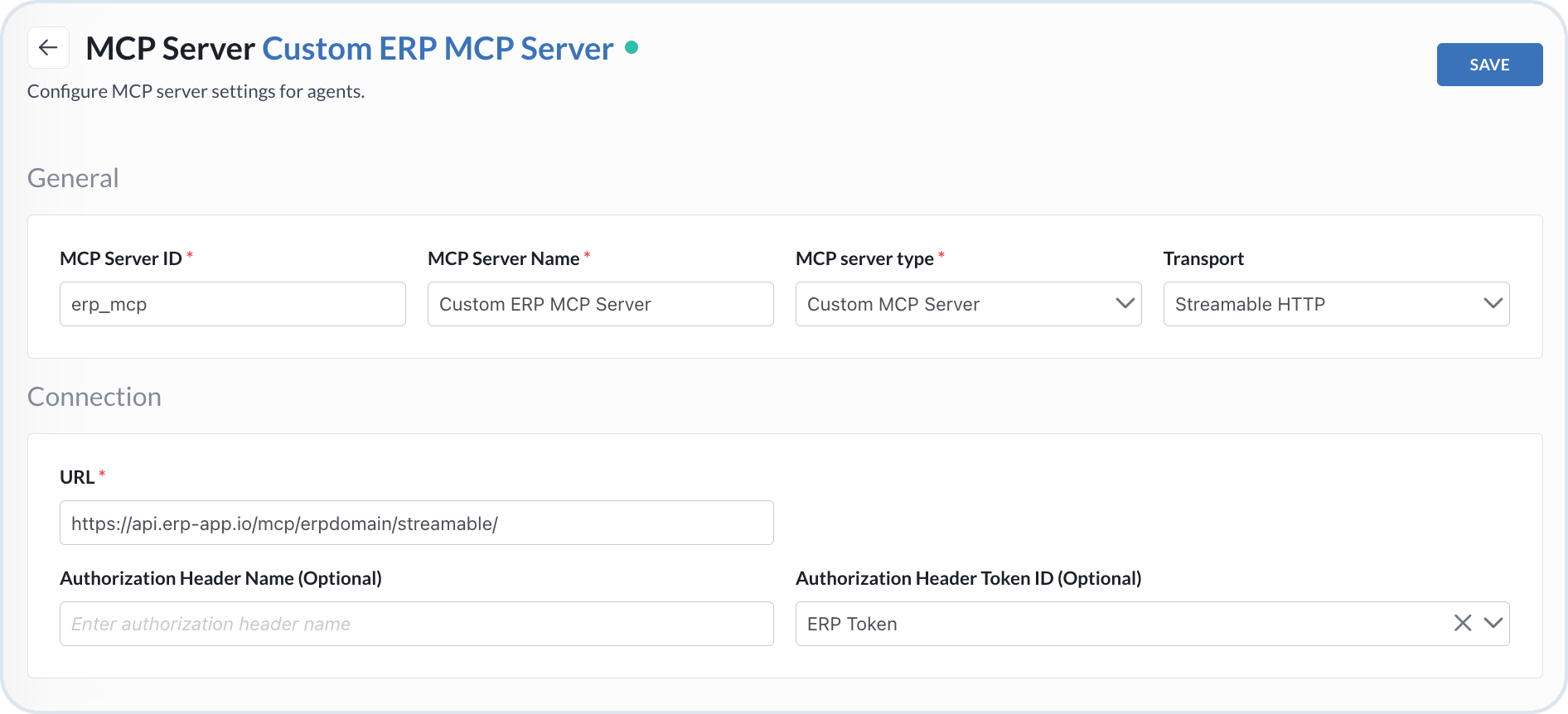
In the Management Dashboard, go to **Agentic AI** -> **AI MCP** and choose **Add new MCP server**. Then, in the **MCP Server Type** field, select **Custom MCP Server**.
{% endstep %}

{% step %}

#### Define the MCP server

Provide the configuration details for your custom MCP server.

* **MCP Server ID** – Enter a unique identifier that the system uses to reference your server.
* **MCP Server Name** – Enter a human-readable name for the MCP server (for example, ERP Connector).
* **Transport** – Select the transport layer used for communication. Streamable HTTP and Server-Sent Events (SSE) are supported.
* **URL** – Enter the endpoint URL of your external MCP server.
* **Authorization Header Name (Optional)** – If your MCP server requires authorization, specify the header name to include in requests (for example, `Authorization`).
* **Authorization Header Token ID (Optional)** – Select a token defined previously in the [AI Tokens](/agentic-commerce-intelligence/agentic-intelligence/configuration/tokens.md) view to use as the authorization header value.

This allows secure, reusable credential handling without exposing sensitive data.

<figure><img src="https://1530167654-files.gitbook.io/~/files/v0/b/gitbook-x-prod.appspot.com/o/spaces%2F8GgoeZEZYjZrpjOU6w52%2Fuploads%2Fgit-blob-dc2a06d021420d50c9f6222570cd2156e14d4995%2Fagentic_mcp_custom.png?alt=media" alt="AI MCP server"><figcaption><p>Configuring a custom MCP server to be used by AI agents</p></figcaption></figure>

The MCP server is enabled in the system and you can use it now in your agents.
{% endstep %}
{% endstepper %}

{% hint style="warning" %}
**Security considerations**

* Tokens used for authorization are never displayed once saved – they remain encrypted and securely managed.
* Only the selected **Authorization Header Token ID** is passed to the server, ensuring credentials stay isolated and controlled.
* The centralization of tokens and MCP configurations ensures consistency and auditability across all integrations.
* A custom MCP server must not include a tools catalog. Tools belong on dynamic MCP servers only.
  {% endhint %}

## Configuring a dynamic MCP server

Use a dynamic MCP server when you want agents to call custom business logic that you host as Cloud Functions. You store the tool contract in Emporix. Agents then attach that server and, optionally, a subset of tool names. Use it when custom logic spans more than one Emporix domain or includes custom entities that a single predefined server cannot cover.

{% embed url="<https://files.gitbook.com/v0/b/gitbook-x-prod.appspot.com/o/spaces%2FYAak0Z7i2XjNSviBuJeI%2Fuploads%2FUG1fYEQUpSb7bPRvizD6%2Fdynamic_mcp.mp4?alt=media&token=b943e274-2a31-4ed9-a50a-7031144eb710>" %}
Creating a dynamic MCP server, generating a Cloud Function with the AI assistant, filling tool fields, and attaching tools to an agent
{% endembed %}

### Prerequisites

Make sure Emporix Hosting is enabled and initialized on the tenant.

{% hint style="danger" %}
Hosting is billed separately. See [Hosting](/user-guides/management-dashboard/administration/hosting.md) and [Extension and Cloud Function Hosting](/user-guides/extensibility-and-integrations/extensibility-cases/extension-hosting.md).
{% endhint %}

### Adding a dynamic MCP server

{% stepper %}
{% step %}

#### Choose to add a dynamic MCP server

In the Management Dashboard, go to **Agentic AI** -> **AI MCP** and choose **Add new MCP server**. Then, in the **MCP Server Type** field, select **Dynamic MCP Server**.
{% endstep %}

{% step %}

#### Define the MCP server

Provide the configuration details for your dynamic MCP server.

* **MCP Server ID** – Enter a unique identifier that the system uses to reference your server.
* **MCP Server Name** – Enter a human-readable name for the MCP server (for example, Weather MCP).
* **Transport** – Select the transport layer used for communication. Streamable HTTP is supported.
  {% endstep %}

{% step %}

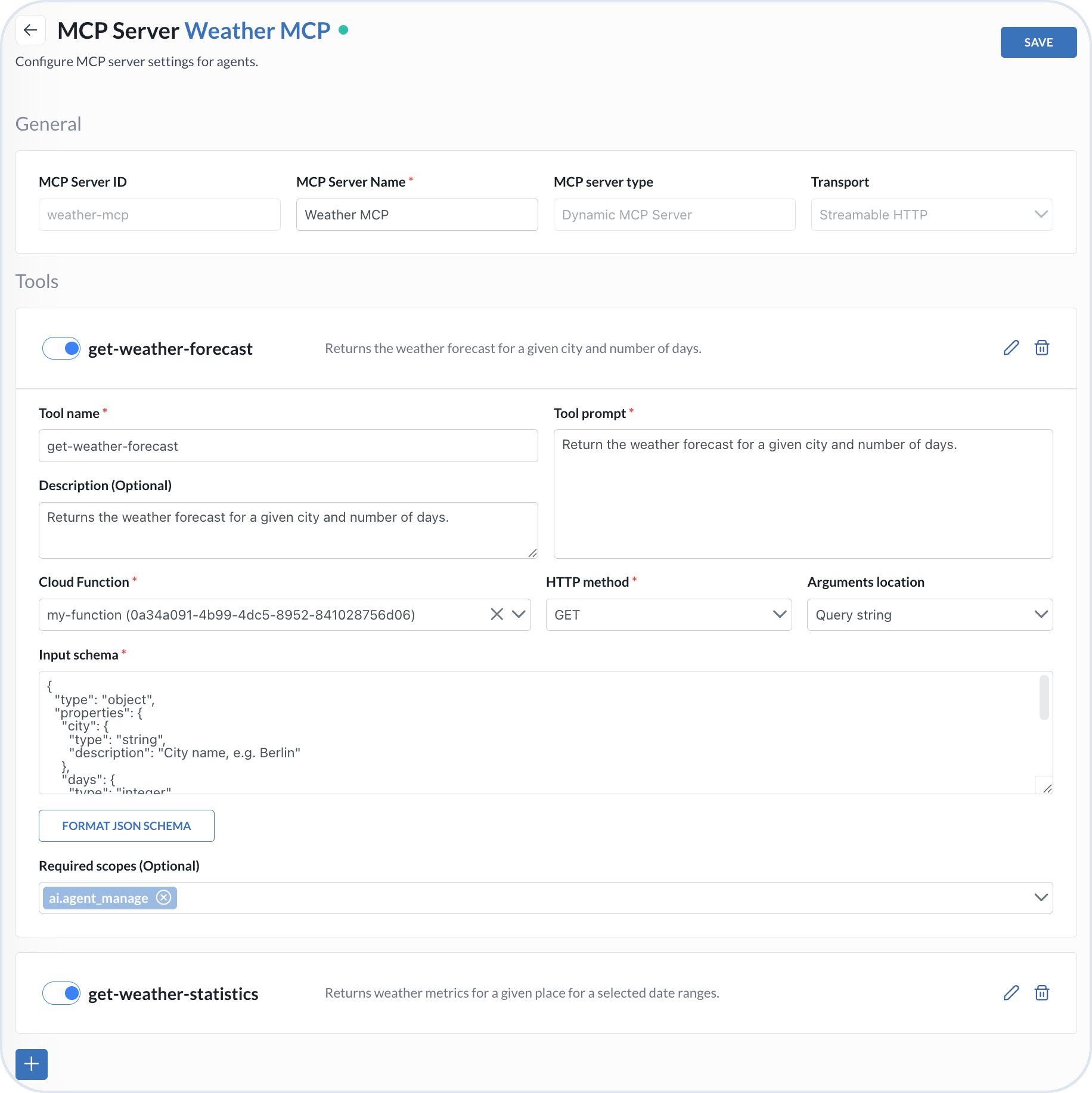
#### Define MCP tools

Add tools that map each agent-callable operation to a Cloud Function. You can define multiple tools for an MCP server. Use the toggle on a tool to enable or disable it at runtime.

When you select a Cloud Function, the [Agentic Dynamic MCP Tool Assistant](/agentic-commerce-intelligence/agentic-intelligence/agent-library/dynamic-mcp-tool-agent.md) can analyze the latest deployment source and fill in the tool fields. Review the proposal, then choose **Apply**. You can still edit any field afterwards.

In the **Tools** section, bind a Cloud Function:

* If the function already exists, select it from the list. If it is missing after you created it, choose **Refresh**.
* If the function does not exist, choose **Create cloud function**. A new browser tab opens on **Administration** -> **Hosting**. Create the Cloud Function, deploy it, then return to the MCP configuration tab. Choose **Refresh**, and select the new function from the list.

{% hint style="info" %}
For more information and steps, see [Hosting](/user-guides/management-dashboard/administration/hosting.md#host-a-cloud-function).
{% endhint %}

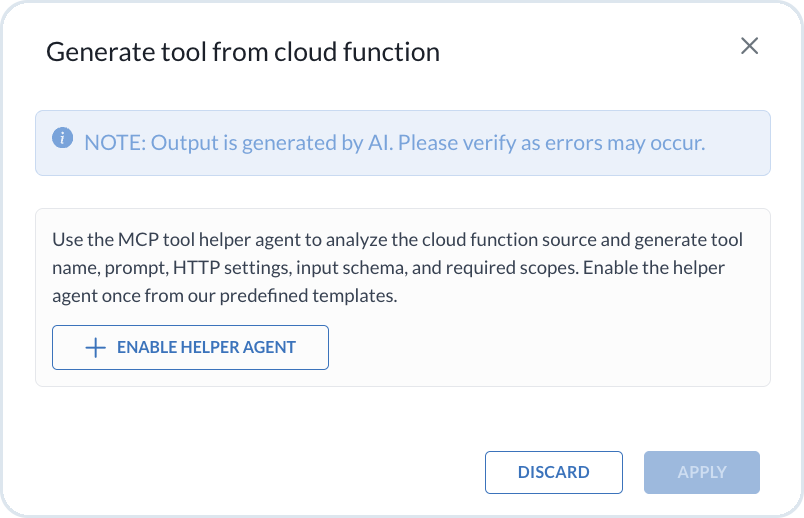
After you select a Cloud Function, the **Generate tool from cloud function** dialog opens.

{% hint style="info" %}
The first time you select a Cloud Function on a dynamic MCP server, a dialog asks you to enable the [Agentic Dynamic MCP Tool Assistant](/agentic-commerce-intelligence/agentic-intelligence/agent-library/dynamic-mcp-tool-agent.md). This is a one-time action, the same as for other helper agents. Select **Enable Helper Agent**. You can also enable it from **Predefined Agents** in the [AI Agent Library](/agentic-commerce-intelligence/agentic-intelligence/agent-library.md). Once enabled, the agent remains available in the library.

<img src="https://1530167654-files.gitbook.io/~/files/v0/b/gitbook-x-prod.appspot.com/o/spaces%2F8GgoeZEZYjZrpjOU6w52%2Fuploads%2Fgit-blob-0a2427b089e93fe8de225f0555f95e28f94c7075%2Fagentic_mcp_enable_helper.png?alt=media" alt="Enabling the Agentic Dynamic MCP Tool Assistant" data-size="original">
{% endhint %}

The assistant then downloads the latest deployment, analyzes the source, and proposes values for **Tool name**, **Tool prompt**, **Description**, **HTTP method**, **Arguments location**, **Input schema**, and **Required scopes**. Choose **Apply** to fill the fields, or **Discard** to leave them empty.
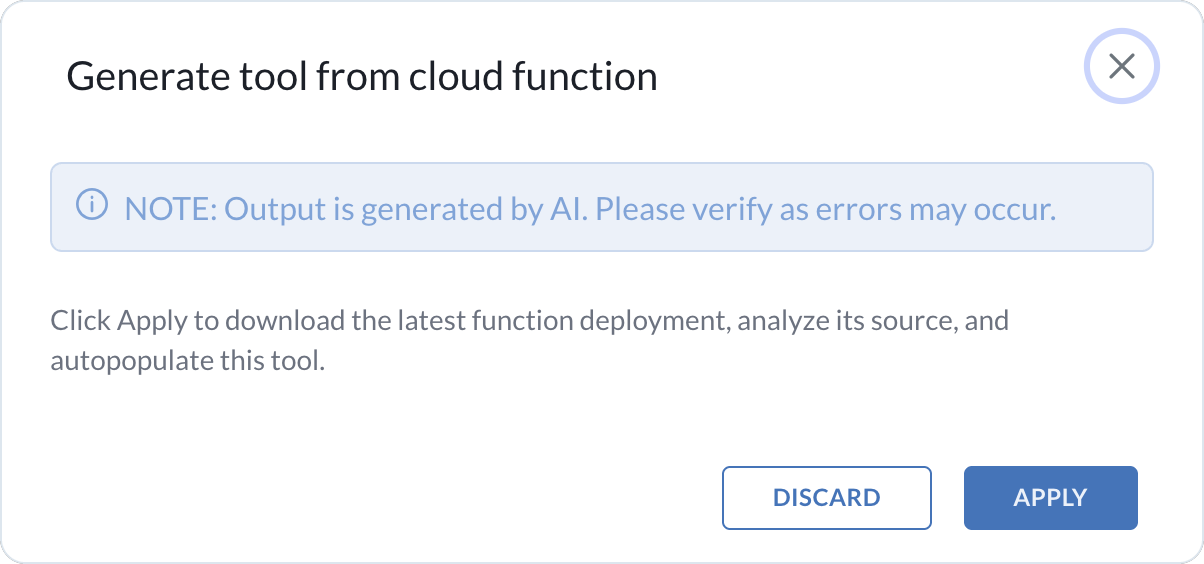
<figure><img src="https://1530167654-files.gitbook.io/~/files/v0/b/gitbook-x-prod.appspot.com/o/spaces%2F8GgoeZEZYjZrpjOU6w52%2Fuploads%2Fgit-blob-39cf22ee0a9b982dcba7eea9207317b8148e8e23%2Fagentic_mcp_generate_tool.png?alt=media" alt="Generate tool from cloud function" width="375"><figcaption><p>Generating a tool from a Cloud Function</p></figcaption></figure>

You can then review and adjust the fields. To define the tool without the helper agent, complete the fields yourself:

* **Tool name** – Enter a unique name for the tool. It must not contain whitespace and is case-insensitive.
* **Tool prompt** – Provide instructions that tell the agent when and why to call the tool.
* **Description (Optional)** – Provide a human-readable summary of the tool.
* **HTTP method** – Select the method used to call the function: `GET`, `POST`, `PUT`, `PATCH`, or `DELETE`.
* **Arguments location** – Select where tool arguments are sent: **Request body** or **Query string**.
* **Input schema** – Provide the JSON Schema for the tool input. Use **Format JSON Schema** to validate and format the schema.
* **Required scopes (Optional)** – Specify the OAuth scopes the caller must have to invoke the tool. This field restricts who may call the tool. The identity headers injected into the Cloud Function depend on how the tool is invoked, not only on this list. See [Cloud Function context for dynamic MCP tools](#cloud-function-context-for-dynamic-mcp-tools) and [Invoking cloud functions](/user-guides/extensibility-and-integrations/extensibility-cases/extension-hosting.md#invoking-cloud-functions).

Add as many tools as you need using the **+** button in the **Tools** section, then choose **Save**. Emporix validation prevents saving when the tools catalog is empty, **Input schema** is missing, a Cloud Function is missing, or hosting is not enabled.

<figure><img src="https://1530167654-files.gitbook.io/~/files/v0/b/gitbook-x-prod.appspot.com/o/spaces%2F8GgoeZEZYjZrpjOU6w52%2Fuploads%2Fgit-blob-603b20120bde87de8229ef3614d9306bcc2e0c4f%2Fagentic_mcp_dynamic.png?alt=media" alt="Dynamic MCP server"><figcaption><p>Configuring a dynamic MCP server and its tools</p></figcaption></figure>
{% endstep %}
{% endstepper %}

### Using a dynamic MCP server in an AI agent

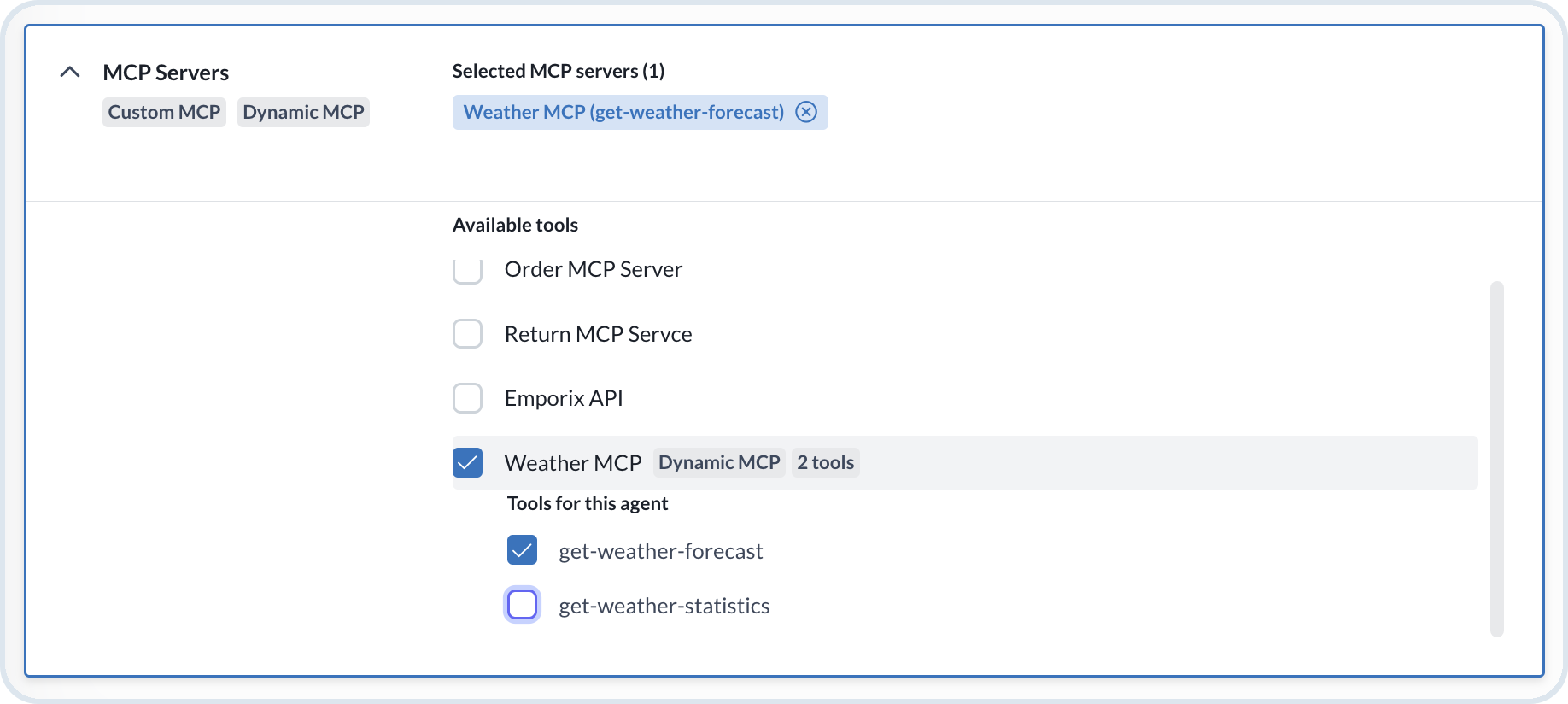
Once you save the dynamic MCP server, it becomes available to attach to your agents. In the custom agent, go to the **Tools** tab.

<figure><img src="https://1530167654-files.gitbook.io/~/files/v0/b/gitbook-x-prod.appspot.com/o/spaces%2F8GgoeZEZYjZrpjOU6w52%2Fuploads%2Fgit-blob-573d6c82cf17874e9415a36c2504db33269a2d59%2Fagentic_mcp_dynamic_tools.png?alt=media" alt="MCP tools"><figcaption><p>Adding dynamic MCP tools in an AI agent</p></figcaption></figure>

When the dynamic MCP server has multiple tools, select only the ones you want to attach to the agent.

### Connecting external clients to a dynamic MCP server

Emporix hosts a Streamable HTTP endpoint for each dynamic MCP server. External MCP clients can use it the same way as predefined domain MCP servers. Agents in Agentic AI attach the server from the **Tools** tab and do not need this URL.

Unlike a custom MCP server, where you provide an external URL that Emporix calls, a dynamic MCP server is hosted by Emporix. Clients connect to `api.emporix.io` with your tenant, **MCP Server ID**, and MCP token.

For the endpoint structure, MCP token, and tool filtering, see [Dynamic MCP endpoints](/agentic-commerce-intelligence/mcp-in-emporix/mcp.md#dynamic-mcp-endpoints).

{% hint style="info" %}
For predefined Emporix domain MCP servers, tool lists, required scopes, and runtime behavior, see [Emporix MCP Server](/agentic-commerce-intelligence/mcp-in-emporix/mcp.md).
{% endhint %}

## Cloud Function context for dynamic MCP tools

A dynamic MCP server runs each tool as a hosted Cloud Function. Emporix injects identity headers so the function can call Emporix APIs without embedding credentials.

The function can read these headers:

* `emporix-token` – Token generated for this invocation so the function can call Emporix APIs. It is based on the HTTP caller, the commerce event trigger's **Event Scopes**, or the scopes assigned to the MCP API key.
* `emporix-tenant` – Always set. Identifies the tenant that invoked the function.
* `emporix-scopes` – Scopes assigned to that token. Use it to see which resources the function can access.
* `emporix-user-id` – Set for employee tokens on HTTP agent calls and for customer tokens. Not set for service tokens, commerce events, or external MCP clients.
* `emporix-session-id` – Set when the tool runs inside an agent session.
* `emporix-legal-entity-id` – Set only for customer tokens when the customer is assigned to a legal entity. Not set for service tokens, commerce events, or external MCP clients.

For the full header table, see [Invoking cloud functions](/user-guides/extensibility-and-integrations/extensibility-cases/extension-hosting.md#invoking-cloud-functions).

### Agent HTTP chat endpoint

Agents are often started by calling chat endpoints over HTTP. The token provided to the agent is passed to the Cloud Function, so the function receives the same access as the agent's caller.

* If the token is an employee token, `emporix-user-id` is populated.
* If the token is a customer token (SaaS token), both `emporix-user-id` and `emporix-legal-entity-id` are populated when the customer is assigned to a legal entity.
* `emporix-scopes` is always populated, regardless of the token type. Use it to see which resources the function can access.

### Commerce event

Agents can also start when a commerce event arrives, for example `product.product-created`. In that case, Emporix cannot pass a user token to the Cloud Function.

Use **Event Scopes** on the agent to provide the scopes Emporix uses to generate a token for the function. If no scopes are selected, the Cloud Function receives no `emporix-token`.

Configure **Event Scopes** in the agent's **Trigger & Constraints** tab. See [AI Agents](/agentic-commerce-intelligence/agentic-intelligence/agents.md#creating-a-custom-agent).

### External MCP client

You can run tools without an agent by connecting an external MCP client, for example Cursor or OpenAI, to the dynamic MCP server URL:

```
https://api.emporix.io/mcp/dynamic/{TENANT}/{MCP_SERVER_ID}/{MCP_TOKEN}/mcp
```

The URL differs from predefined domain MCP servers because it must include the **MCP Server ID**. Generate the MCP token the same way as for other MCP servers. The token contains a list of scopes. Emporix uses those scopes to generate the `emporix-token` for the Cloud Function.

See [Connecting Emporix MCP Server with Cursor](/agentic-commerce-intelligence/mcp-in-emporix/mcp/connect-cursor.md), [Connecting Emporix MCP Server with OpenAI](/agentic-commerce-intelligence/mcp-in-emporix/mcp/connect-openai.md), and [Dynamic MCP endpoints](/agentic-commerce-intelligence/mcp-in-emporix/mcp.md#dynamic-mcp-endpoints).

### Example Cloud Function

This example shows a Cloud Function that can act as a dynamic MCP tool. It reads `emporix-token` and `emporix-tenant` from the request and fetches a product from the Emporix Product API.

```javascript
const functions = require('@google-cloud/functions-framework');
functions.http('main', async (req, res) => {
  try {
    const token = req.get('emporix-token');
    const tenant = req.get('emporix-tenant');
    const { productId } = req.body || {};
    if (!token) {
      return res.status(401).json({
        error: 'Missing required header: emporix-token'
      });
    }
    if (!tenant) {
      return res.status(400).json({
        error: 'Missing required header: emporix-tenant'
      });
    }
    if (!productId) {
      return res.status(400).json({
        error: 'Missing required body field: productId'
      });
    }
    const url = `https://api.emporix.io/product/${encodeURIComponent(
      tenant
    )}/products/${encodeURIComponent(productId)}`;
    const response = await fetch(url, {
      method: 'GET',
      headers: {
        Authorization: `${token}`,
        Accept: 'application/json'
      }
    });
    if (!response.ok) {
      const errorBody = await response.text();
      return res.status(response.status).json({
        error: 'Failed to fetch product',
        details: errorBody
      });
    }
    const product = await response.json();
    return res.status(200).json(product);
  } catch (error) {
    console.error('Unexpected error while fetching product', error);
    return res.status(500).json({
      error: 'Internal server error'
    });
  }
});
```


---

# Agent Instructions
This documentation is published with GitBook. GitBook is the documentation platform designed so that both humans and AI agents can read, navigate, and reason over technical content effectively. Learn more at gitbook.com.

## Querying This Documentation
If you need additional information that is not directly available in this page, you can query the documentation dynamically by asking a question.

Perform an HTTP GET request on the current page URL with the `ask` query parameter, and the optional `goal` query parameter:

```
GET https://developer.emporix.io/agentic-commerce-intelligence/agentic-intelligence/configuration/custom-mcp.md?ask=<question>&goal=<endgoal>
```

`ask` is the immediate question: it should be specific, self-contained, and written in natural language.
`goal` is optional and describes the broader end goal you are ultimately trying to accomplish on behalf of the user. GitBook uses it to tailor the answer towards what is most useful for that goal.

The response will contain a direct answer to the question and relevant excerpts and sources from the documentation.

Use this mechanism when the answer is not explicitly present in the current page, you need clarification or additional context, or you want to retrieve related documentation sections.