> For the complete documentation index, see [llms.txt](https://developer.emporix.io/llms.txt). Markdown versions of documentation pages are available by appending `.md` to page URLs; this page is available as [Markdown](https://developer.emporix.io/document-intake-cockpit/readme.md).
# Document Intake Cockpit
Use the Document Intake Cockpit to receive documents of configured types, monitor intake, and complete the review actions available in your tenant.
{% hint style="warning" %}
The Document Intake Cockpit is not enabled by default on all tenants. To receive documents by email, you also need an external mailbox and orchestration that processes its attachments. Direct upload does not require this email configuration. To enable the cockpit or learn more, contact [Emporix Support](mailto:support@emporix.com).
{% endhint %}
The **Emporix Document Intake Cockpit** is the workspace for teams that process inbound business documents such as invoices, orders, quotes, or returns. Documents can arrive through email or be added directly using the upload feature. Document Intake evaluates each attachment separately against the configured document types, and an attachment can become a linked document. Depending on your tenant configuration, matching, validation, approval, and other downstream automation support the review process.
Open the cockpit from the **Management Dashboard** perspective chooser. The pages and actions available to you depend on your tenant's [Access Configuration](/document-intake-cockpit/configuration/access-configuration.md).
## Key benefits
| Feature | Benefit |
| --------------------------------------------- | --------------------------------------------------------------------------------------------------------------- |
| **Email and direct-upload intake** | Receive documents through a configured mailbox or add files directly when email is not required. |
| **AI-assisted classification and extraction** | Turn attachments into documents of the types configured for your tenant with less manual data entry. |
| **Auto matching and validation** | Compare extracted values with business data and identify issues before documents continue through the workflow. |
| **Queues and email inbox** | Keep email conversations, attachment outcomes, linked documents, and review work in one cockpit. |
| **Configurable processing** | Adapt document types, forms, rules, approvals, automation, and access to your business process. |
## Getting started
Use these pages to understand the intake flow, define your first document types, or follow a worked configuration example.
:diagram-project:
Document Intake Process
Understand how email attachments and direct uploads become documents for review.
## Cockpit views
The side menu groups day-to-day work under **Inbox** and **Documents**, and administrator settings under **Configuration**. **Additional Data** is available when the tenant has master-data configurations. The exact pages, queues, and document-type entries depend on tenant configuration and access rights.
**Inbox** provides the dashboard, configured inbox queues, email items, and direct upload. **Documents** provides a separate list for each configured document type. If no document types are configured, the side menu shows one **Documents** item.
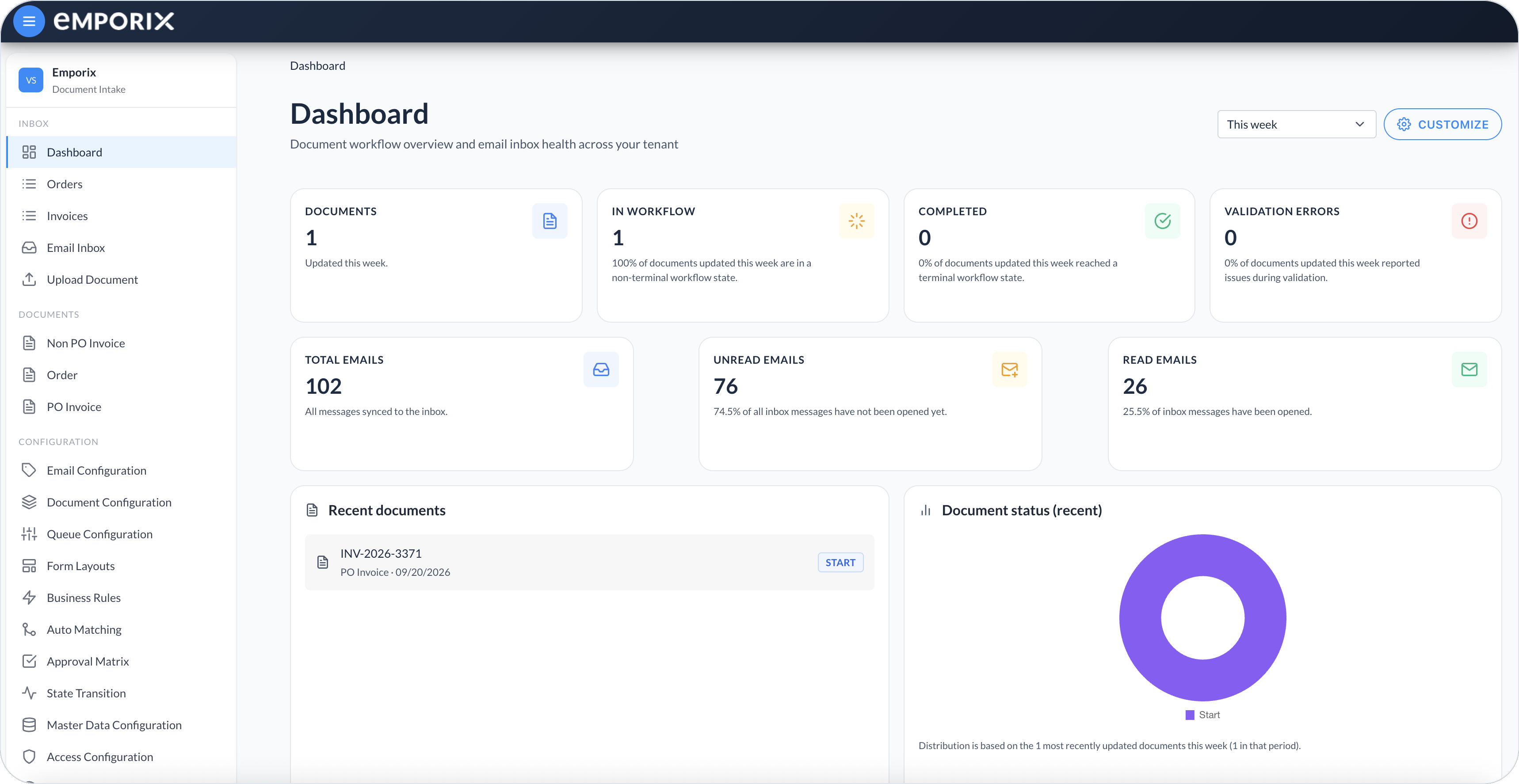
Example Dashboard
:chart-pie:
Dashboard
Check document workflow and inbox health, and open assigned work.
## Set up Document Intake
{% hint style="success" %}
For a first-time setup, follow the [Suggested setup order](/document-intake-cockpit/configuration/document-configuration.md#suggested-setup-order). Start with **Document Configuration** – it defines the types and fields the rest of the setup depends on.
{% endhint %}
Then, use the **Configuration** pages that match what your process needs:
| Area | What you can achieve | Pages |
| ------------------------ | -------------------------------------------------------------------------------------------- | -------------------------------------------------------------------------------------------------------------------------------------------------------------------------------------------------------------------------------------------------------------------------------------------------------------------------------------------------------------------------------------------------------------------------------------------------------------- |
| Intake and review | Categorize inbound email, organize Inbox work, and design the review form |
|
---
# Agent Instructions
This documentation is published with GitBook. GitBook is the documentation platform designed so that both humans and AI agents can read, navigate, and reason over technical content effectively. Learn more at gitbook.com.
## Querying This Documentation
If you need additional information that is not directly available in this page, you can query the documentation dynamically by asking a question.
Perform an HTTP GET request on the current page URL with the `ask` query parameter, and the optional `goal` query parameter:
```
GET https://developer.emporix.io/document-intake-cockpit/readme.md?ask=&goal=
```
`ask` is the immediate question: it should be specific, self-contained, and written in natural language.
`goal` is optional and describes the broader end goal you are ultimately trying to accomplish on behalf of the user. GitBook uses it to tailor the answer towards what is most useful for that goal.
The response will contain a direct answer to the question and relevant excerpts and sources from the documentation.
Use this mechanism when the answer is not explicitly present in the current page, you need clarification or additional context, or you want to retrieve related documentation sections.